To comment on an incident, first you need to check whether the settings for comments for the students as well as the parents are enabled or disabled. Go to the behaviour records > setting.
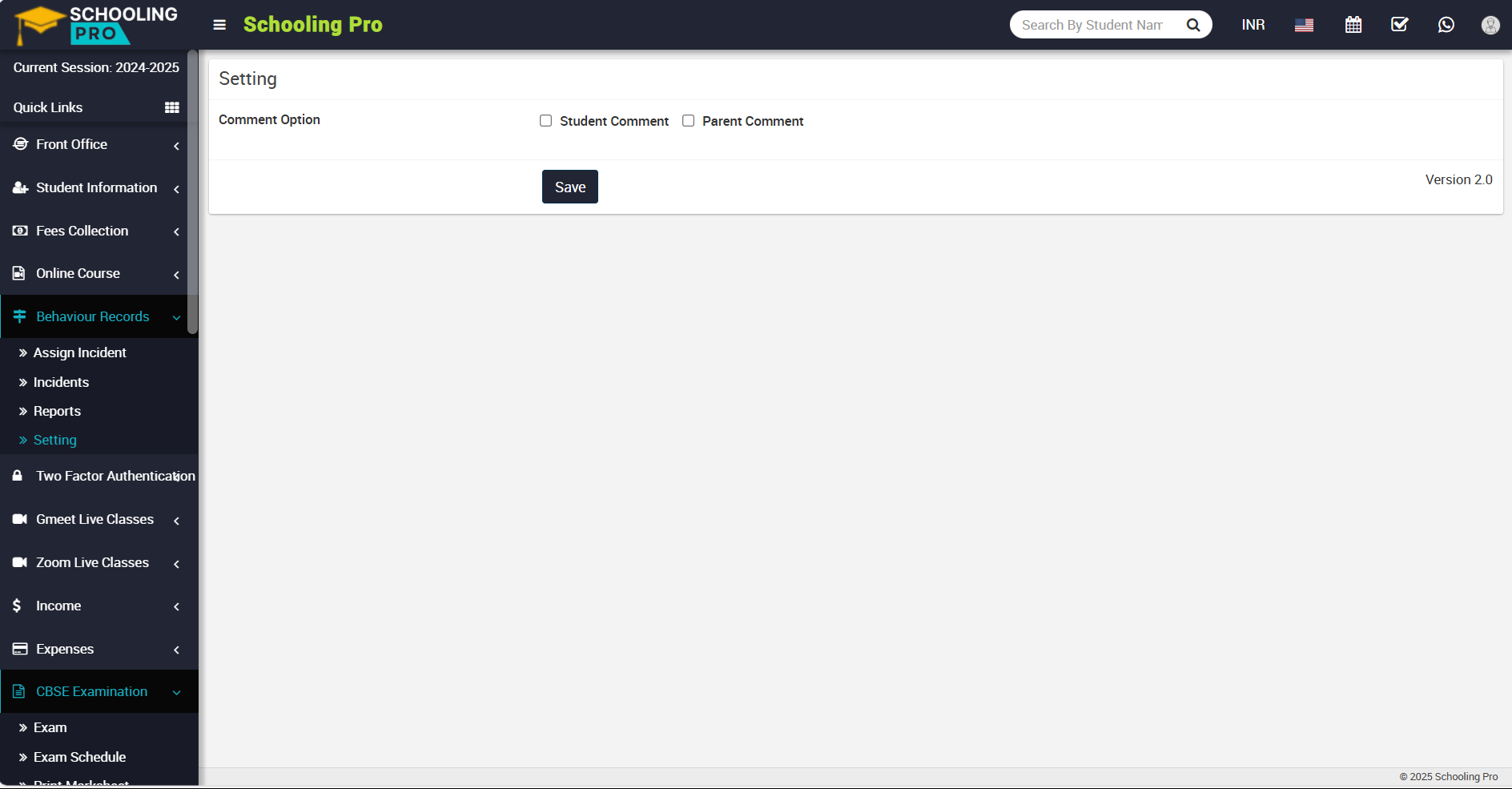
Here you can see the comment option showing for the student as well as the parent, now check the checkbox where you want to comment. If you check both checkbox, so that student and his parent will be able to comment on related incident. Then click the save button to save setting.
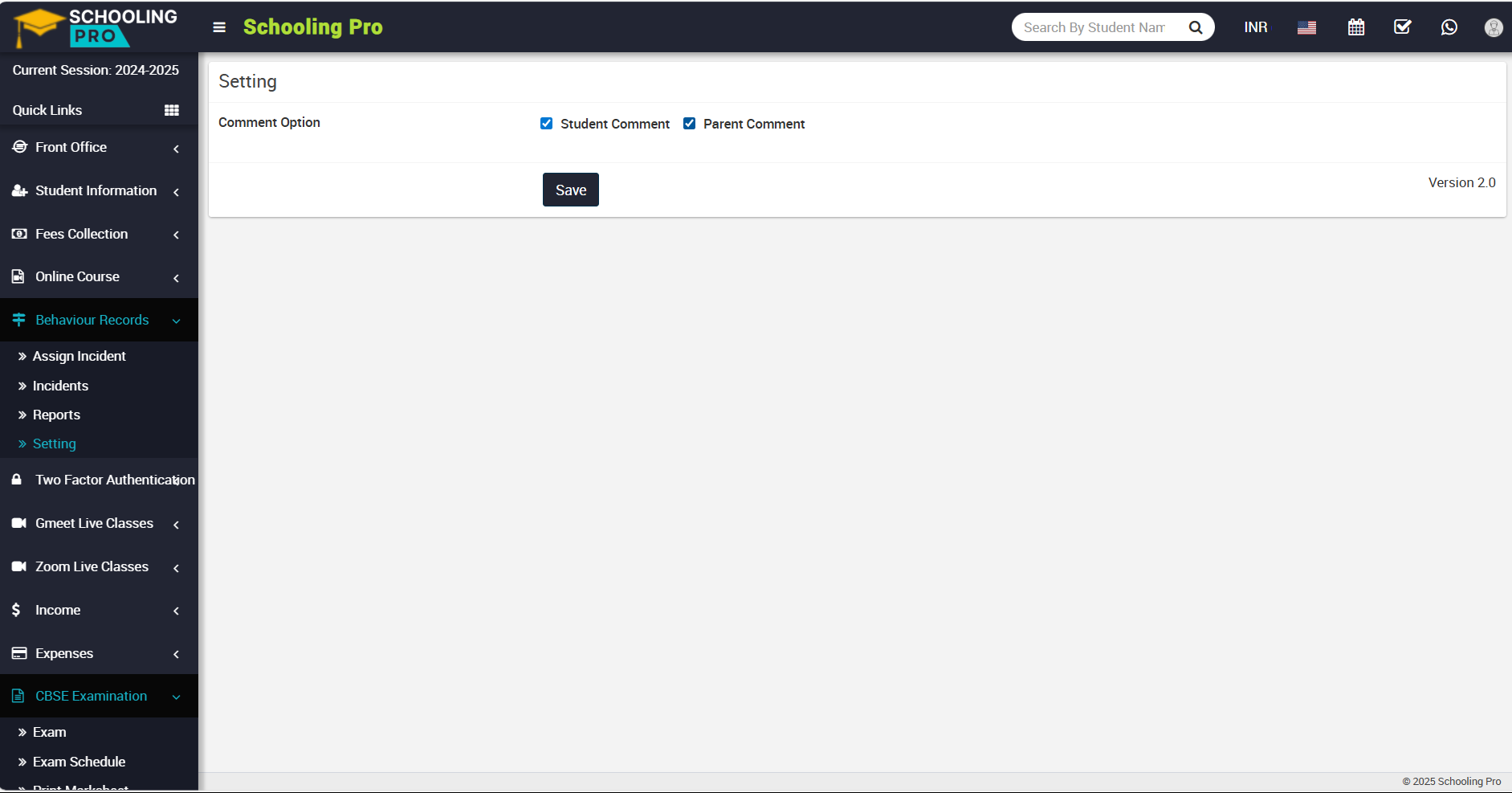
To comment on the student's incident, go to the student information page and click on student details.
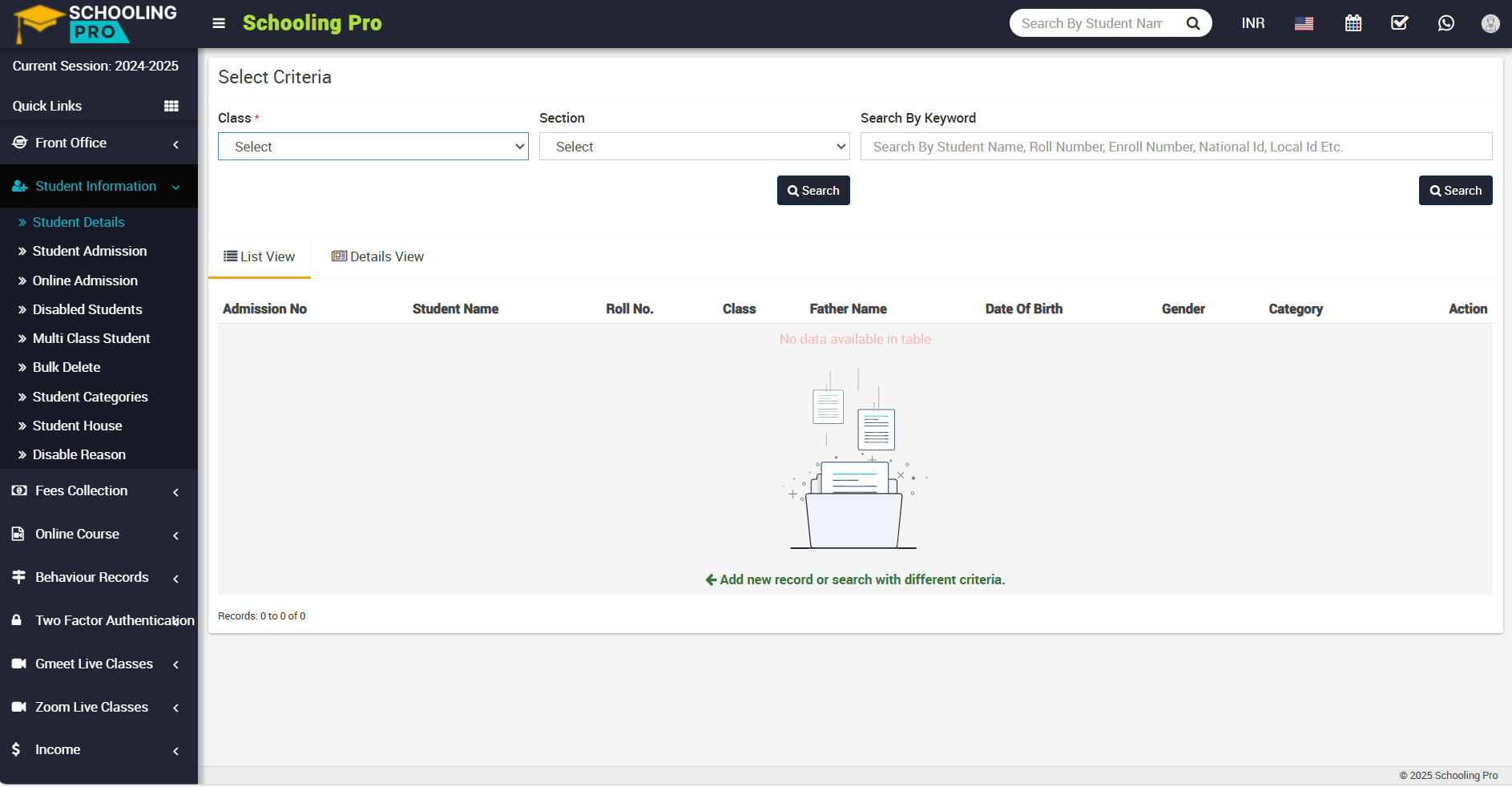
On the right side, the select criteria page will appear now, select the class and section of the student for whom you want to leave a comment about his incident and click the search button.
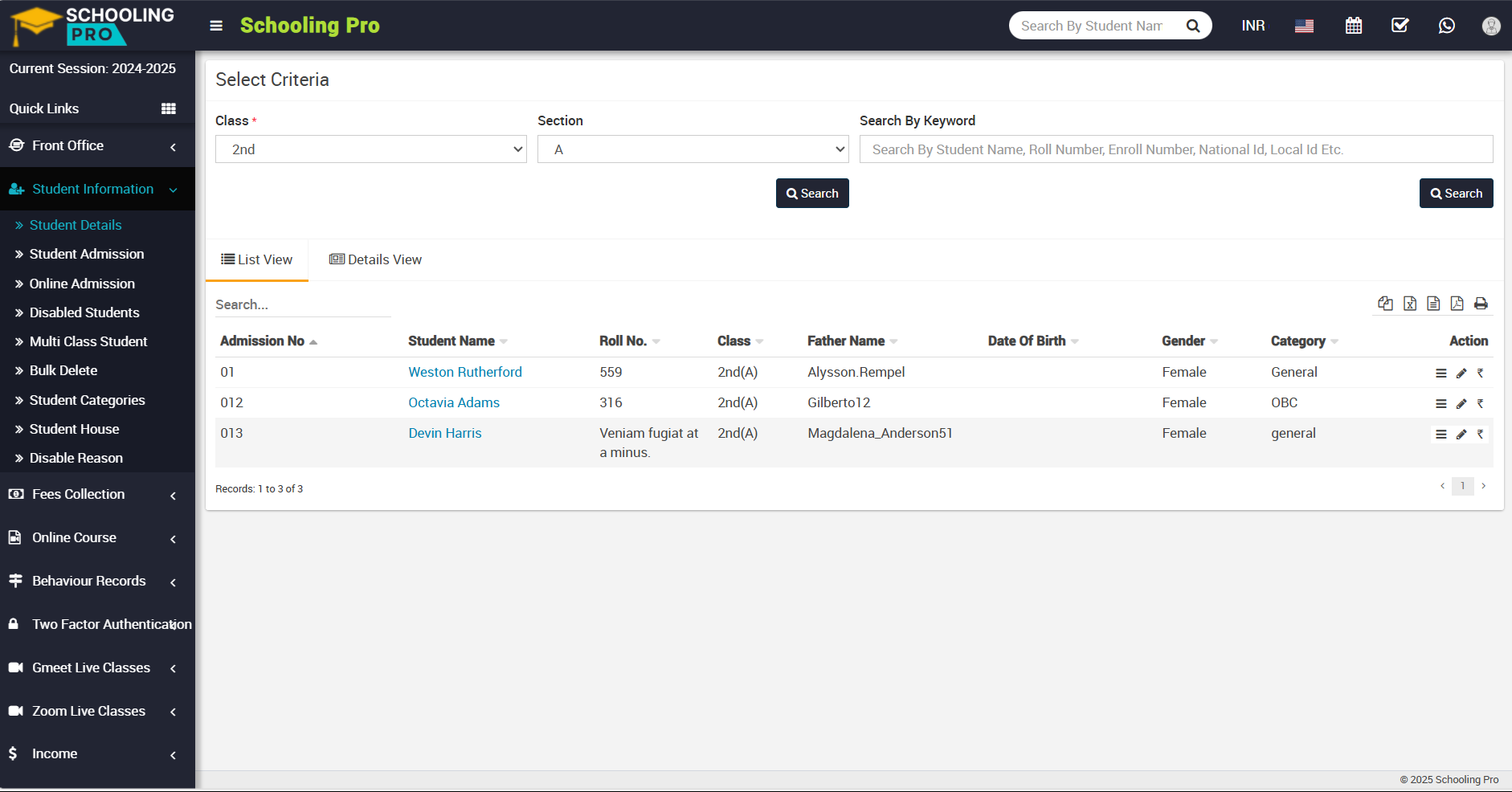
Now, click on the name of the student whose profile you want to view.
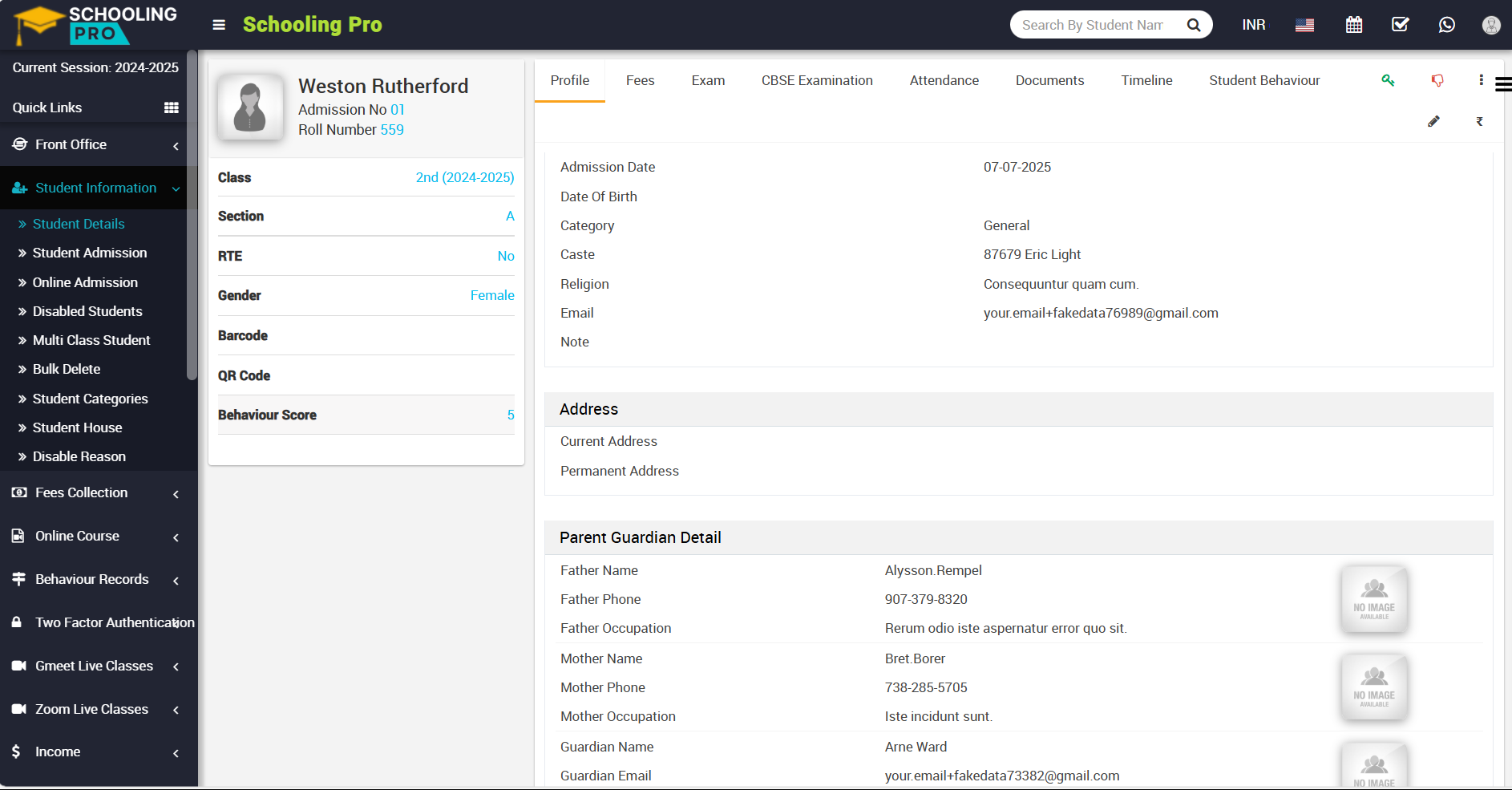
Now click on student behaviour tab which is shown right above.
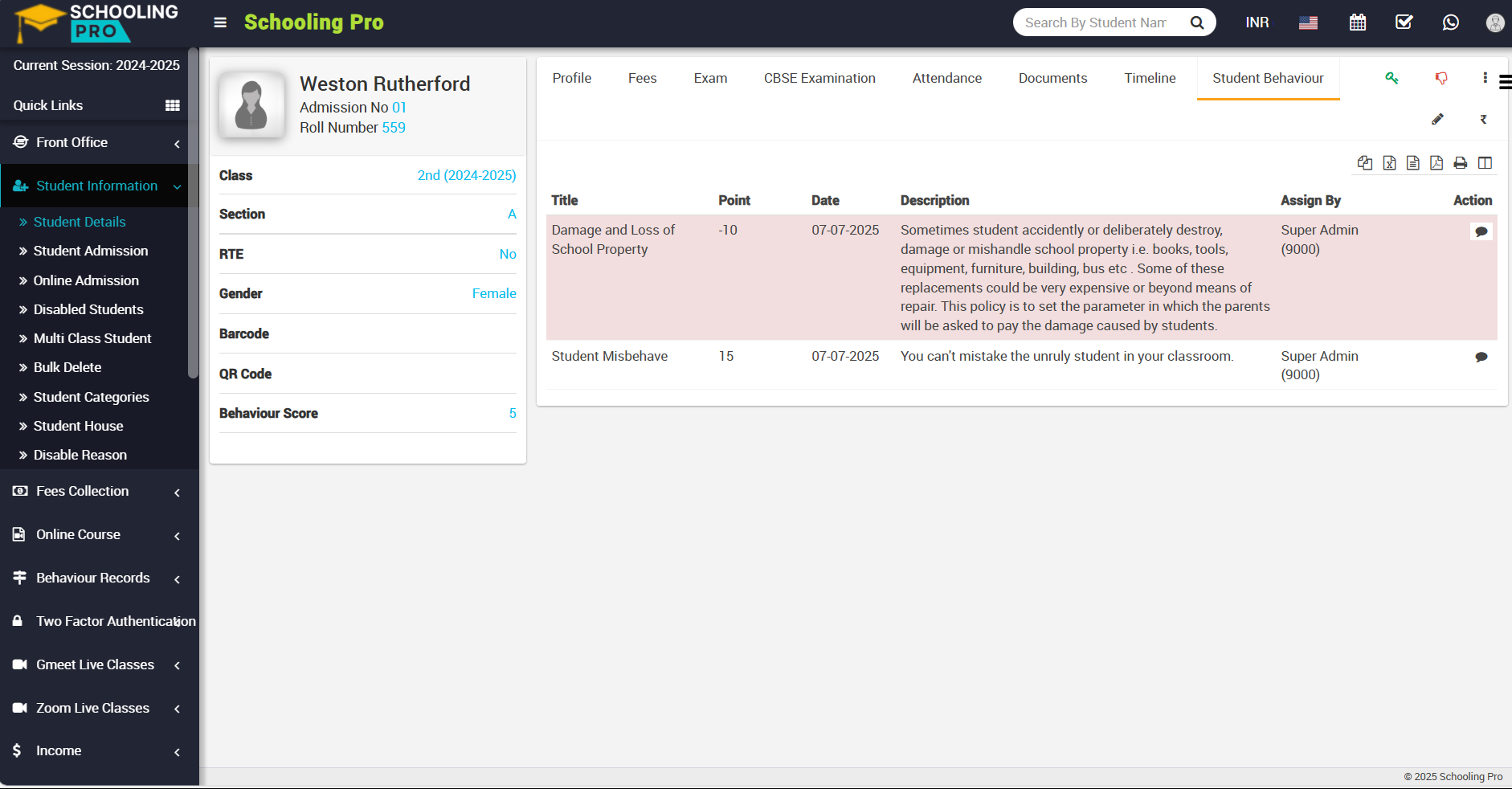
In the incident of student behaviour list showing in the student profile, you can see all the details showing in this table, and now in the action column, you can see the comment option available.
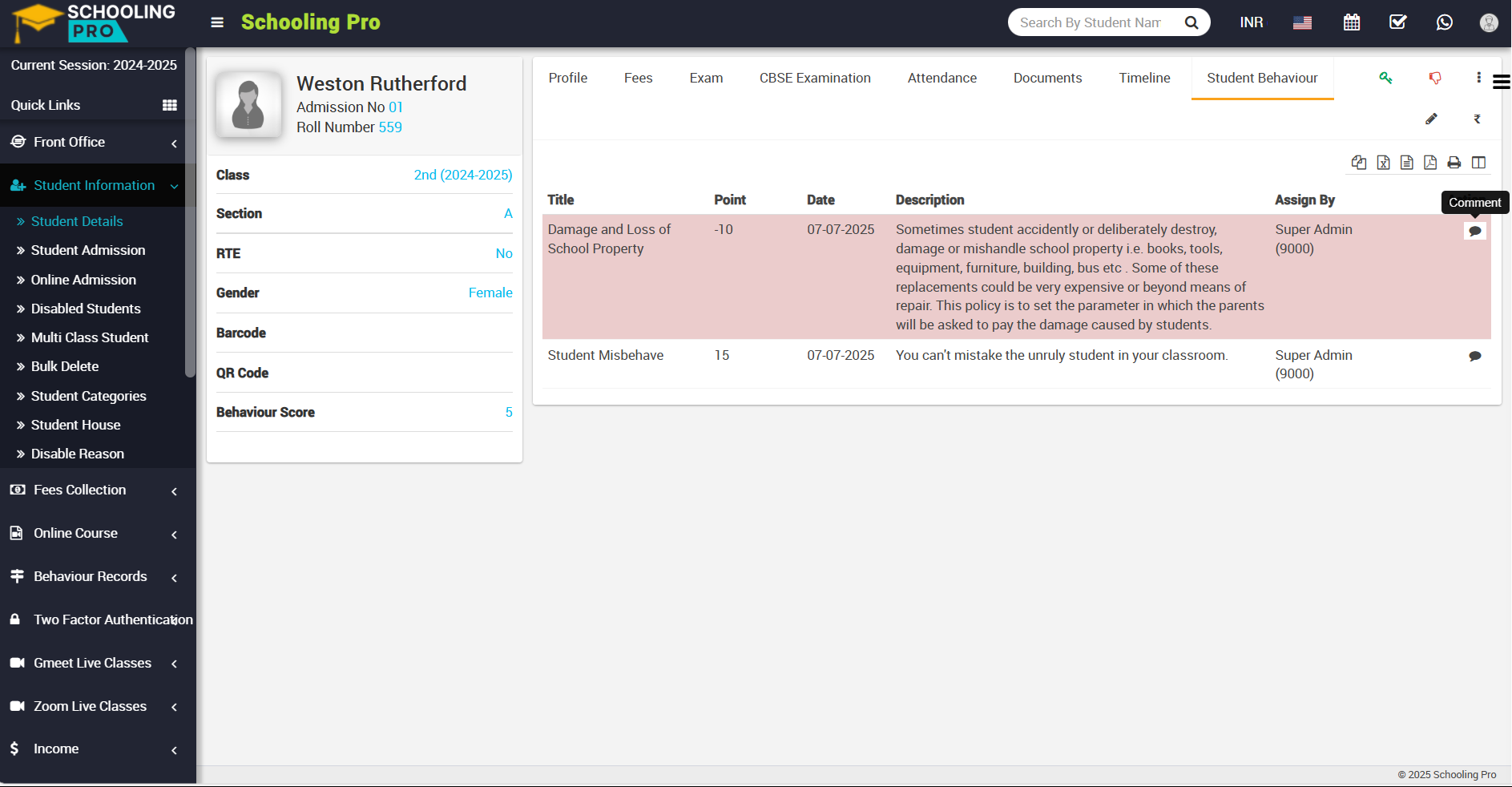
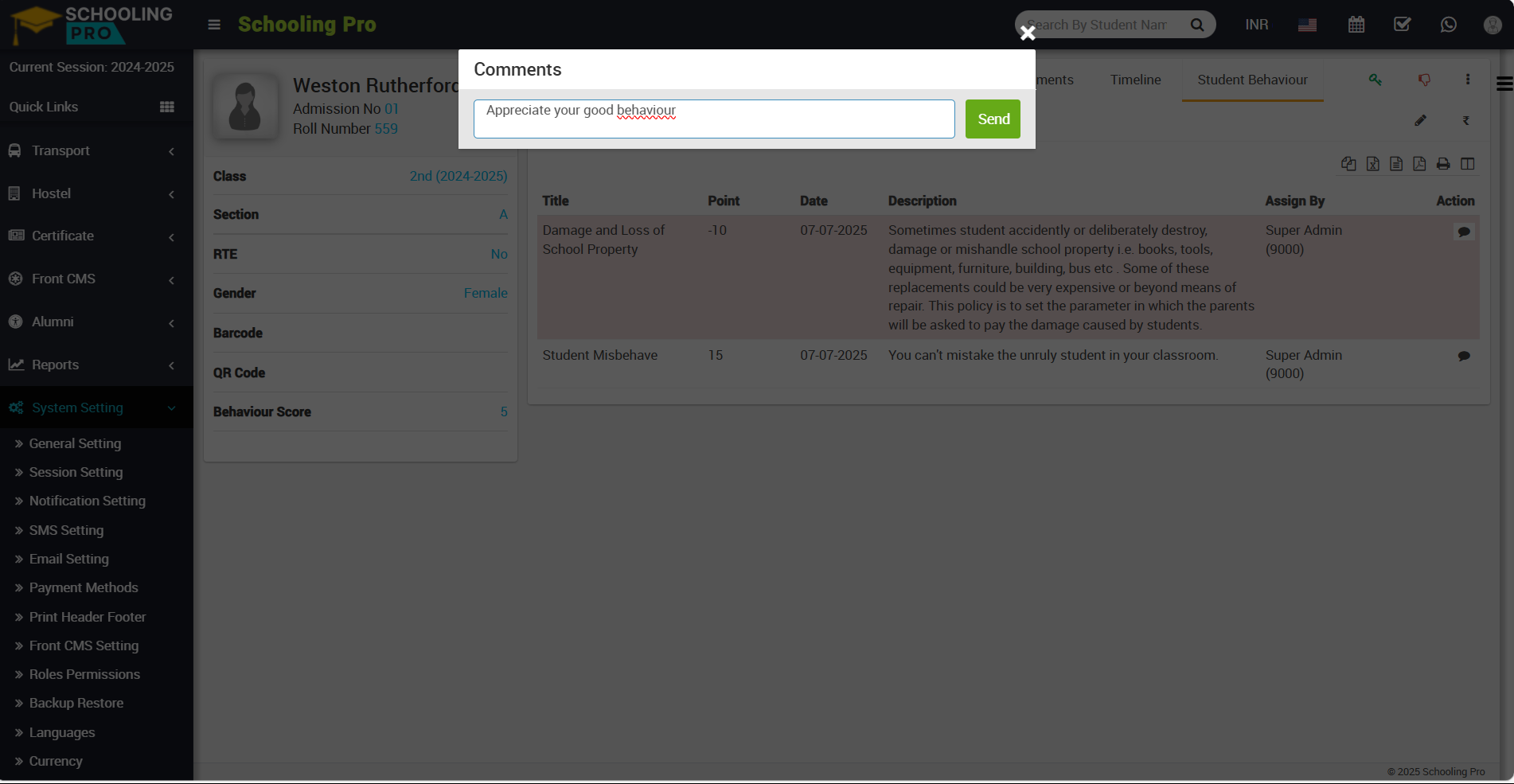
When you click on the comment icon, a comments modal will appear.
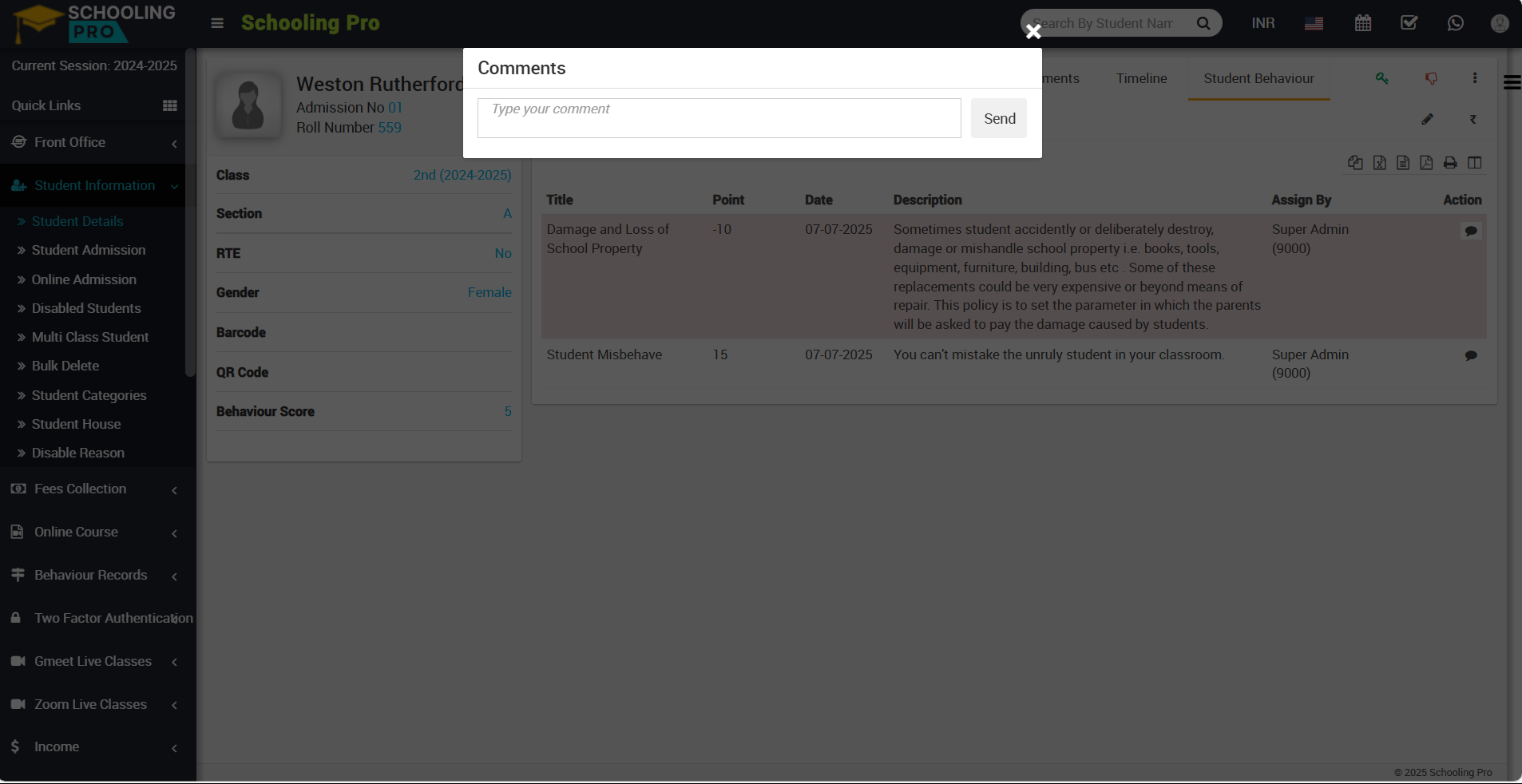
Now, write the comment related to the incident and click on the send button, which is showing on the right side, and the comment will be sent to the student / parent and comment will show on comment box.
If you want to check the comment that you sent, you have to go to the student login in your smart school.
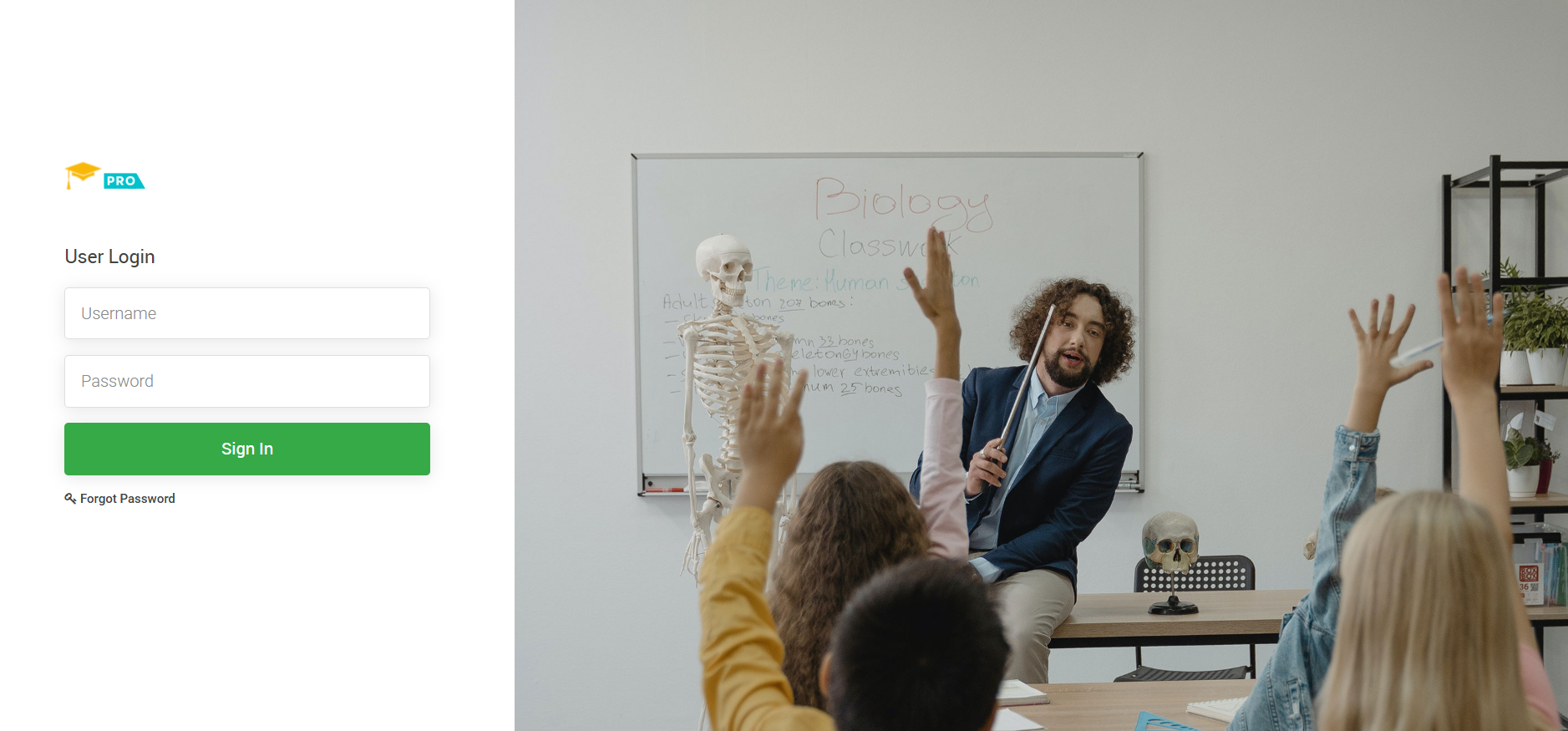
Now, fill the credential of the student and click on the sign in button, student profile will be open.
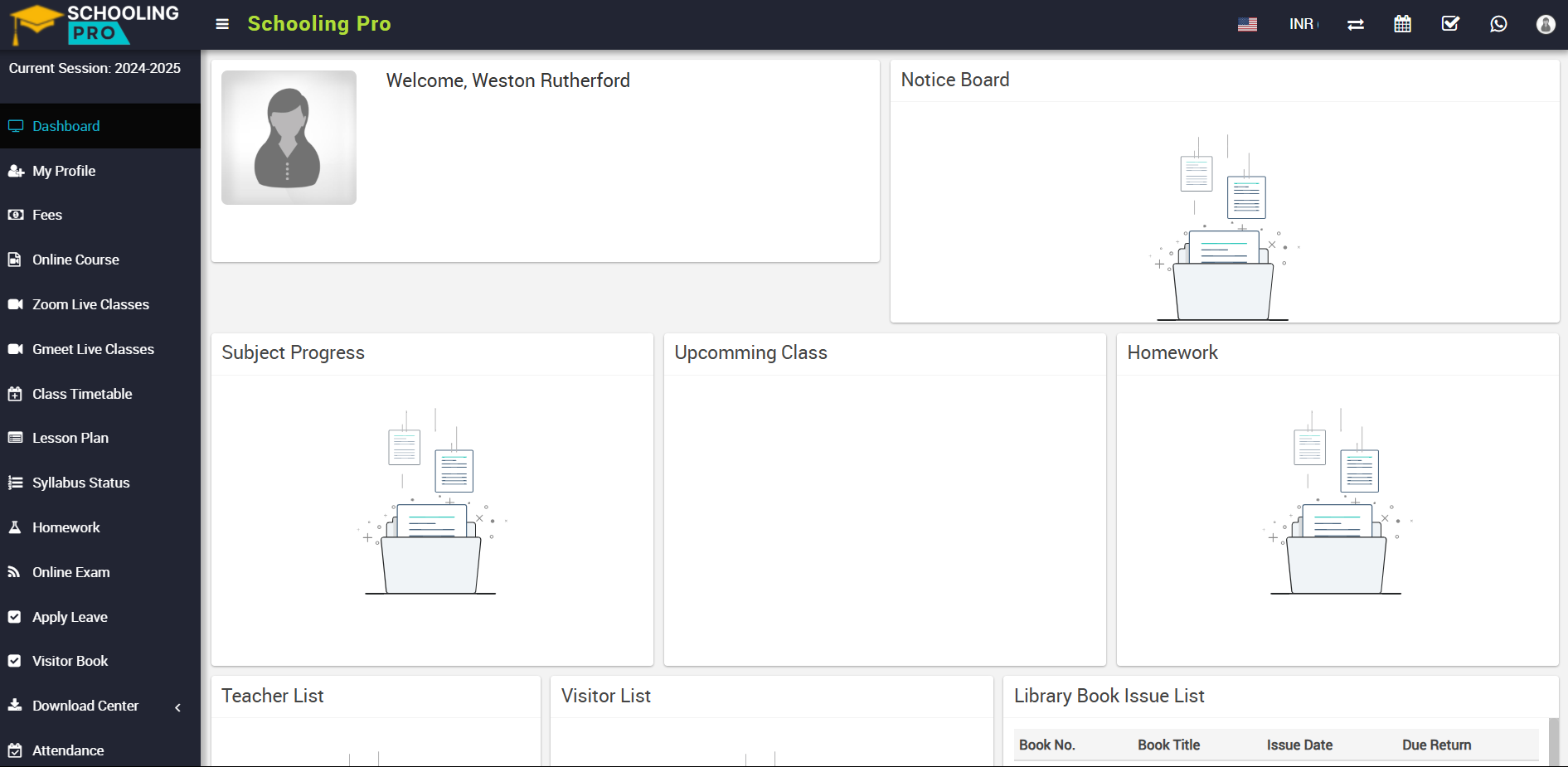
On the right side of the page, you can see the student behaviour option available, please click on student behaviour tab.
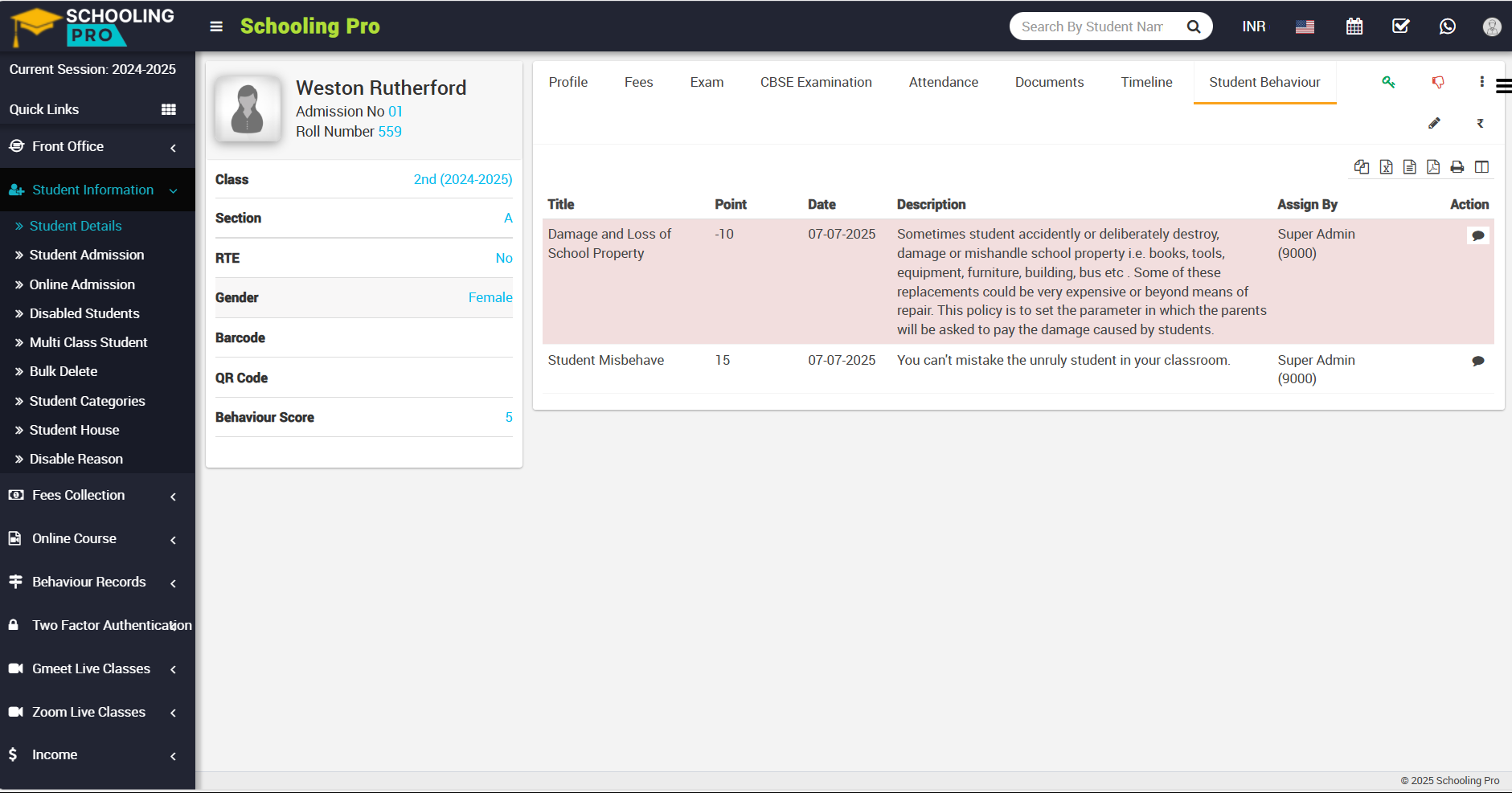
In the student behaviour tab, you can see all the details related to the incident now, in this table, you can see the action column in this action column, you can see the comment option available, and here, students can see the comment on the incident that was left by the superadmin or staff.
Students can now leave a comments on an incident, simply type the comment in the comment box and click the send button on the right side, the student's comment will be successfully sent and comment will show on comment box.
Note: The same procedure can be followed for parents as described above for students.
