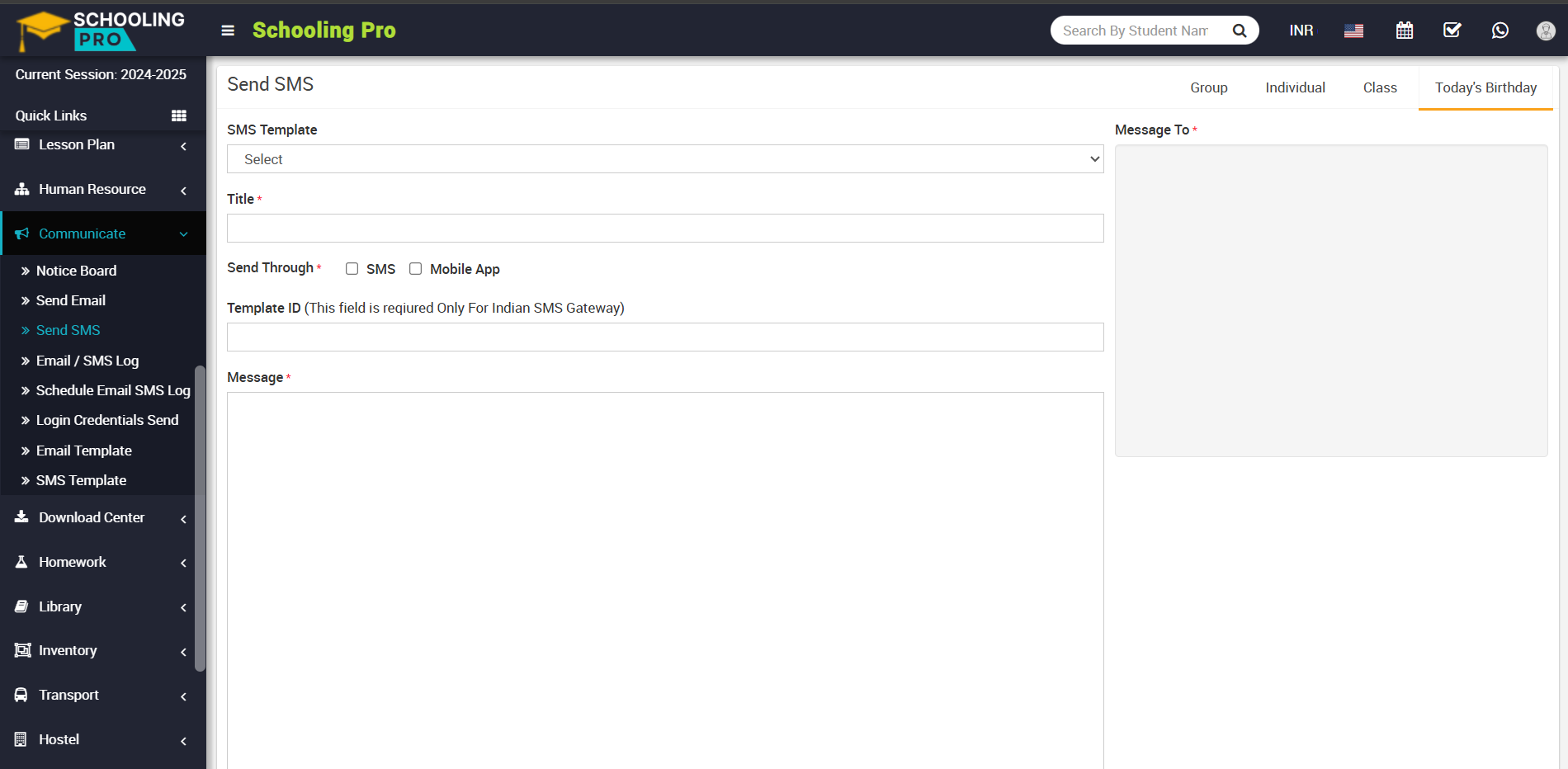
To send sms, go to Communicate > Send SMS. Here you can see four tab present at top right corner in the send sms page then select Group, Individual, Class and Today's Birthday which users group you want to send sms.
Now, schedule SMS feature also available in next to the send now button at below, if you want to sent your sms later you can use this feature overall a scheduled SMS is an sms that is composed and then set to be sent at a specific time and date in the future. Instead of sending the sms immediately after composing it, the sender can choose a later time for the sms to be delivered.
Send SMS to Group-To send SMS to group (Student's, Guardian, Admin), click on the Group tab present at top right corner of the page then enter the details message Select SMS Template, Title, Attachment, Message and select the Message To (Student, Guardian and Admin) and then click on Send or Schedule button and click on submit button.
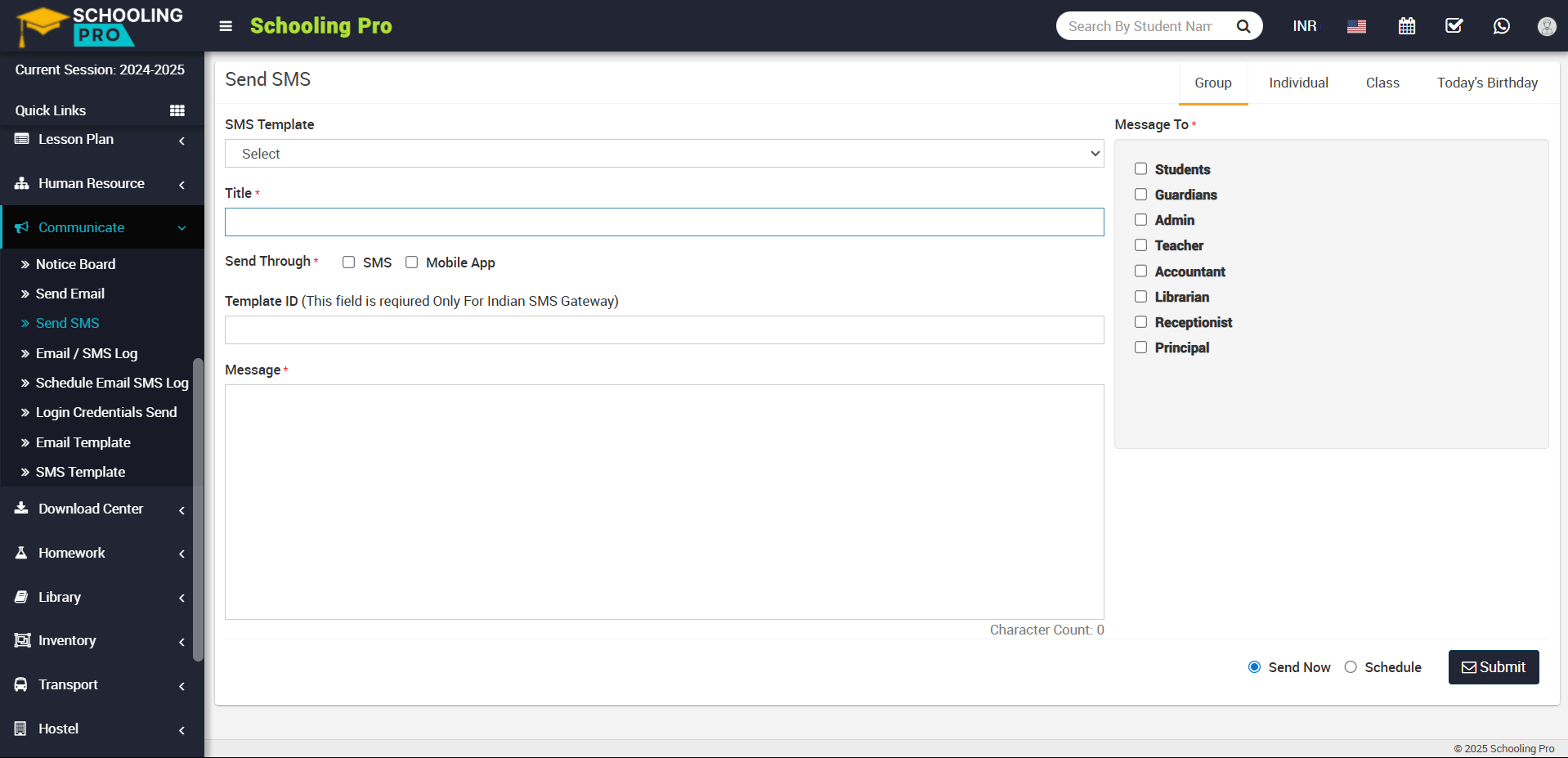 Send SMS to Individual-
To send SMS Individual, click on the Individual tab present at top right corner of the page then enter the details message SMS Template, Title, Send Through, Message and select Message To (Select the group of the person to whom you want to send sms and then search for the member name in the textbox and to add more students click on the add button) and then click on Send or Schedule button and click on submit button.
 Send SMS to Class-
To send SMS class, click on the Class tab present at top right corner of the page then enter the details message SMS Template, Title, Send Through, Message and select Message To (Select class here) and Section (Here you can select multiple sections) and then click on Send or Schedule button and click on submit button.
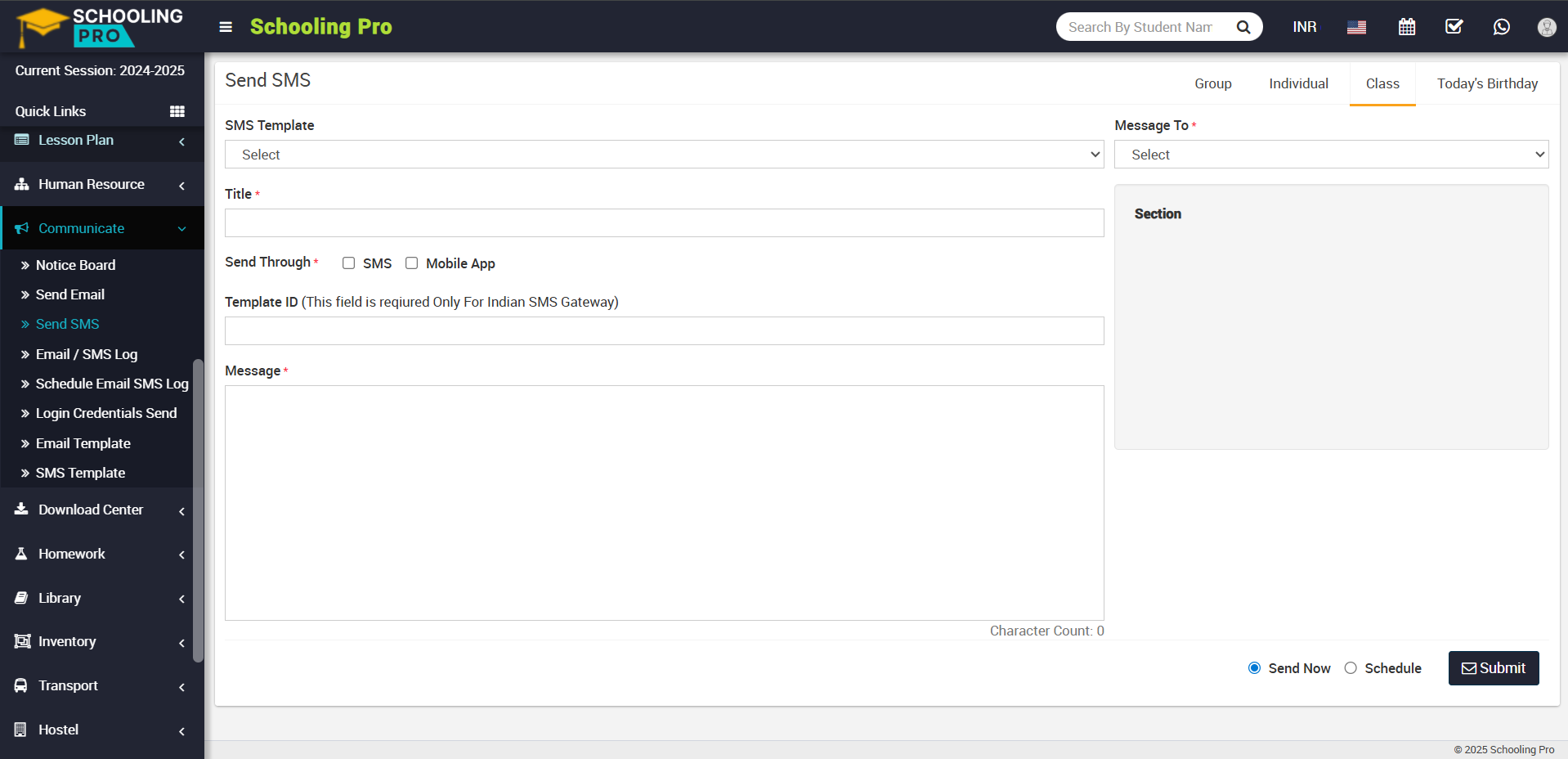 Send SMS to Today's Birthday-
To send birthday sms to all those students, click on the Today's Birthday tab present at top right corner of the page then enter the details message SMS Template, Title, Send Through, Message and Message To and then click on Send or Schdule button and click on submit button.