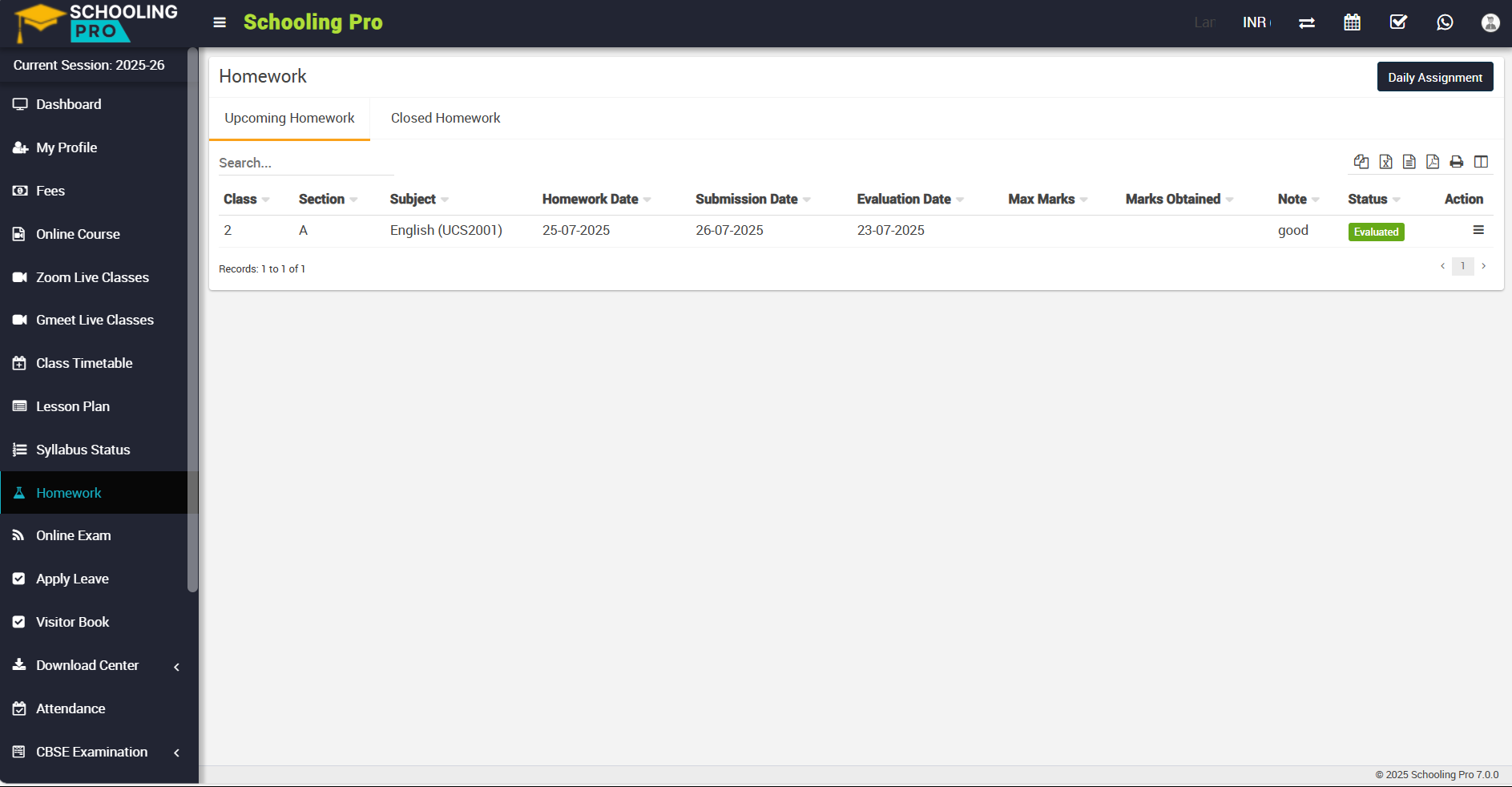
In the student panel, go to the sidebar menu, click on "Homework," and the homework page will now be open, with the "Upcoming Homework" and "Closed Homework" tabs available to see the upcoming homework list and the closed homework list.
In Upcoming Homework, You can view upcoming homework whose date would be current date and whose submission date is determined by the teacher when he wants to keep the submission date.
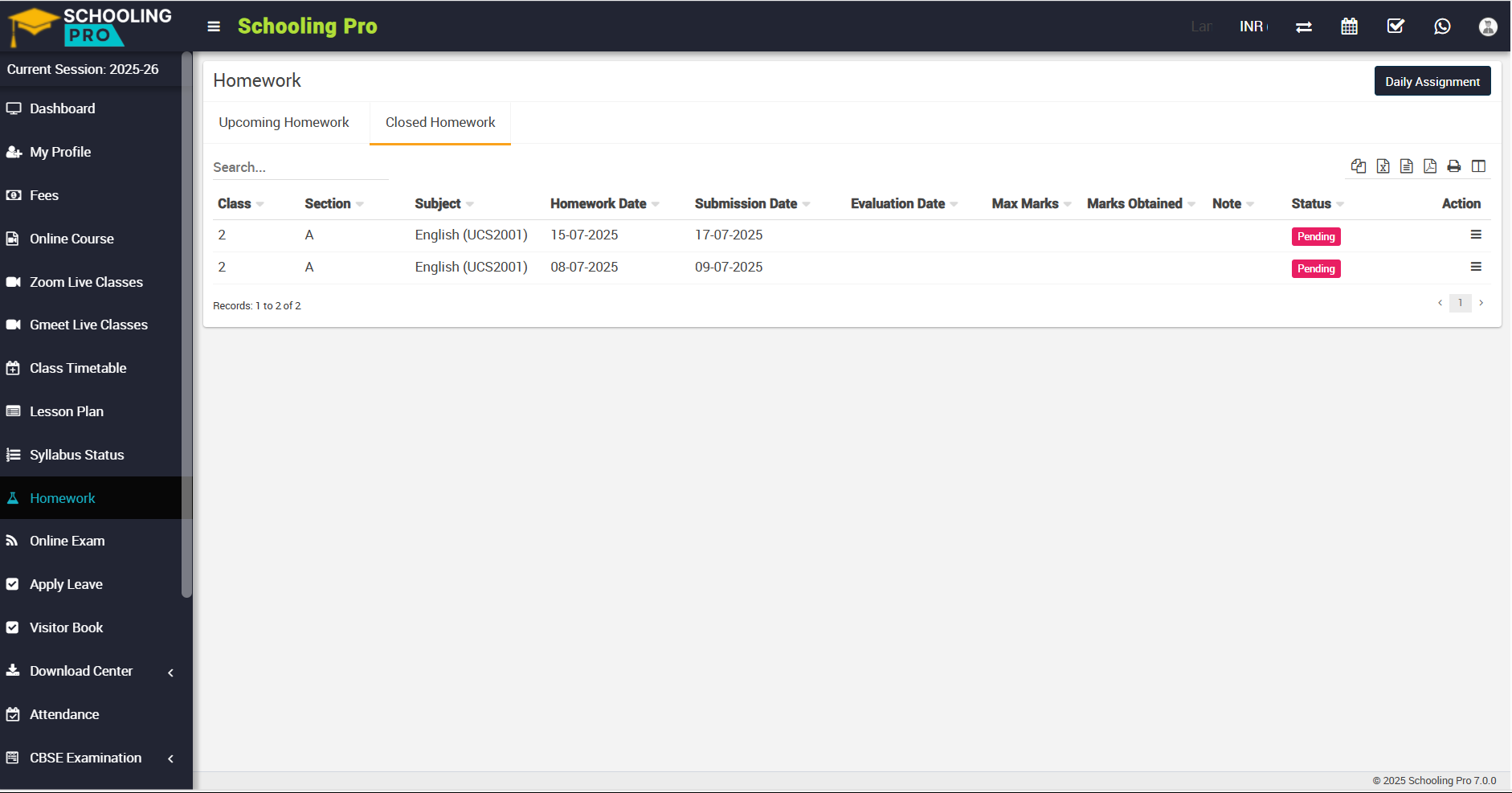
In closed homework, you can view those homework, whose Present Date and Submission Date has been passed out, submission date means as If student fails to meet the submission deadline and the homework due date has been passed, the homework would displayed in Closed Homework and another condition, if teacher does not keep Submission Date and homework present date has been passed so homework would be show in Closed Homework.
To view homework details, click on the "View" icon present in the "Action"column in the homework page. The Homework Details modal will open when you click this icon; here you can see Description, Message, Attach Document, and Homework Summary such as Homework Date, Submission Date, Evaluation Date, Created By, Evaluated By, Class, Section, Subject, Status, and Homework Documents.
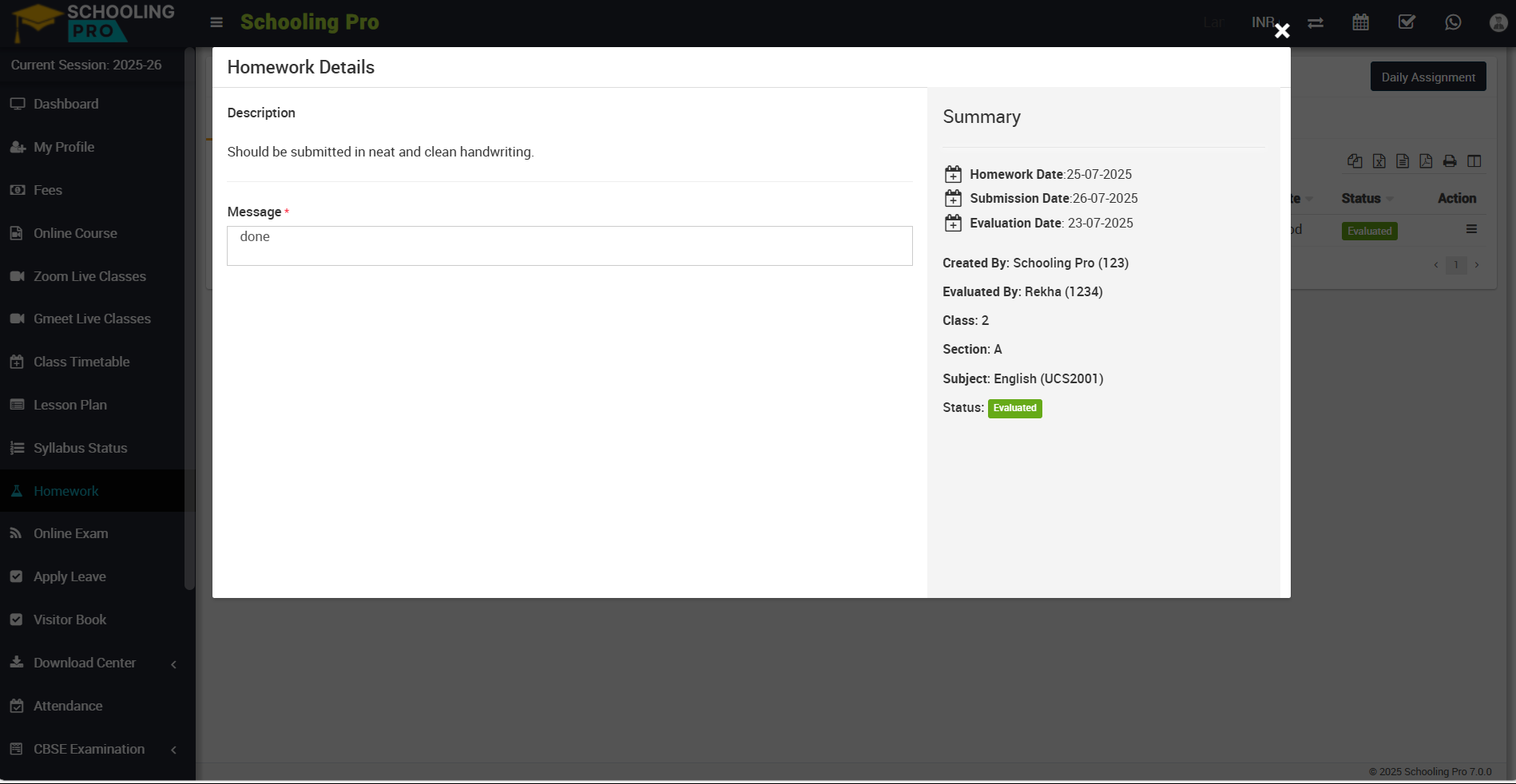
In the "Message" section, you can write the answer. To upload homework, click on Attach Document (drag and drop a file here or click) or select the document, then click on the Save button. Homework will be submitted.
