To generate Zoom API Credential, go to the Zoom Live Classes > Setting. On the right side setting page will be open.
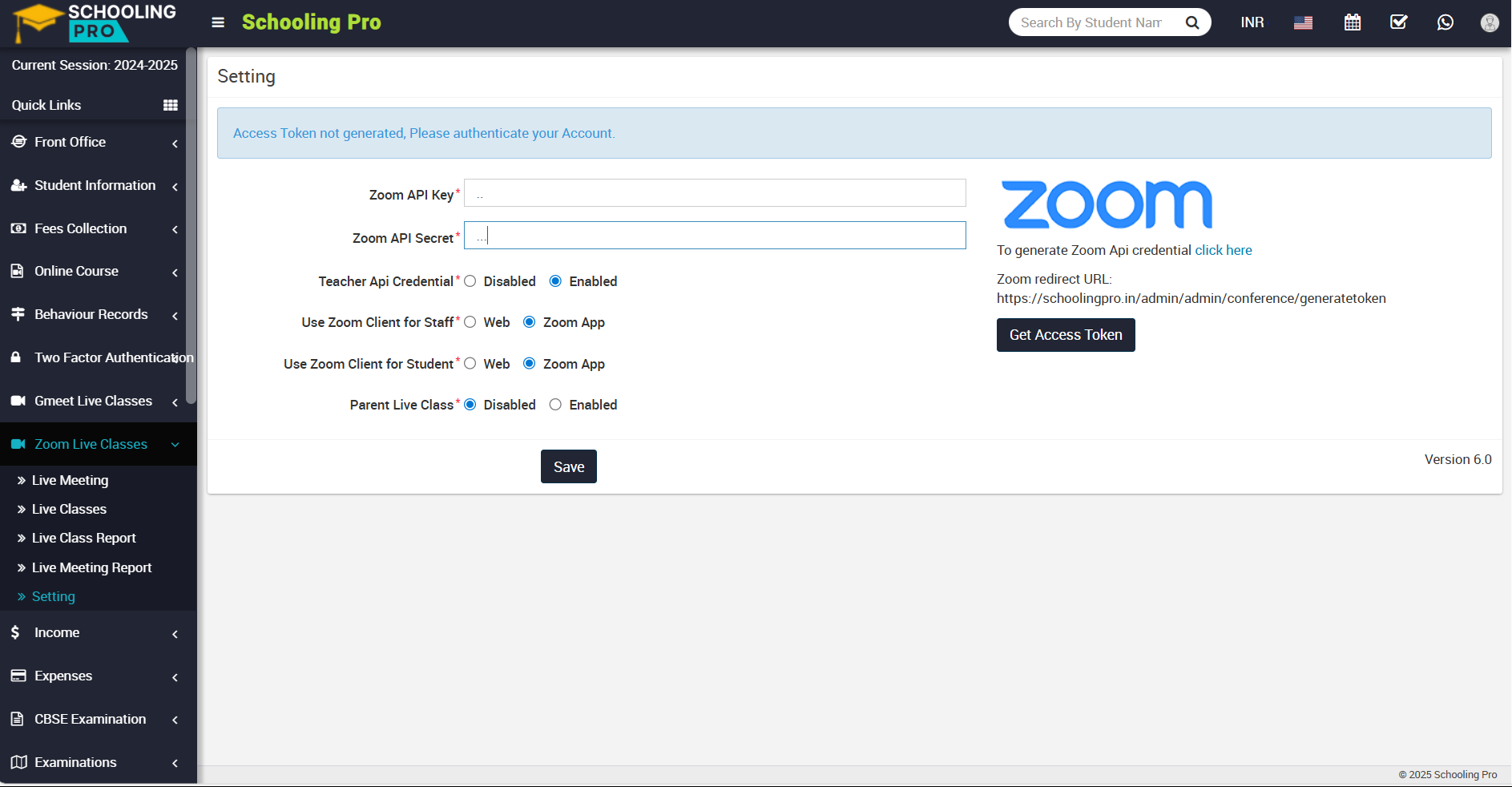
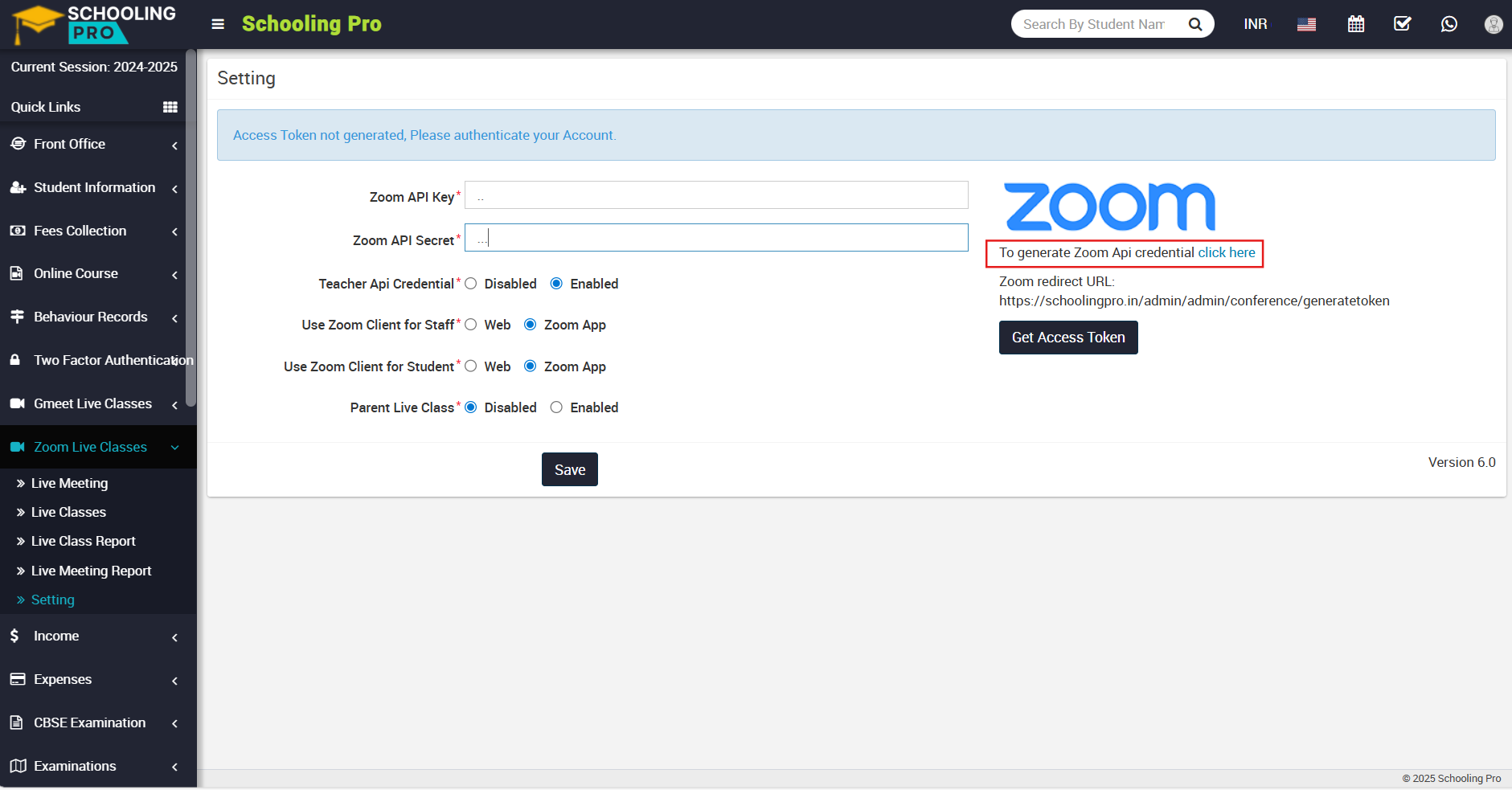
On this page, you can see multiple configuration options are available. To generate zoom api credential, simply click on the 'click here' link, which is shown in blue on the right above.
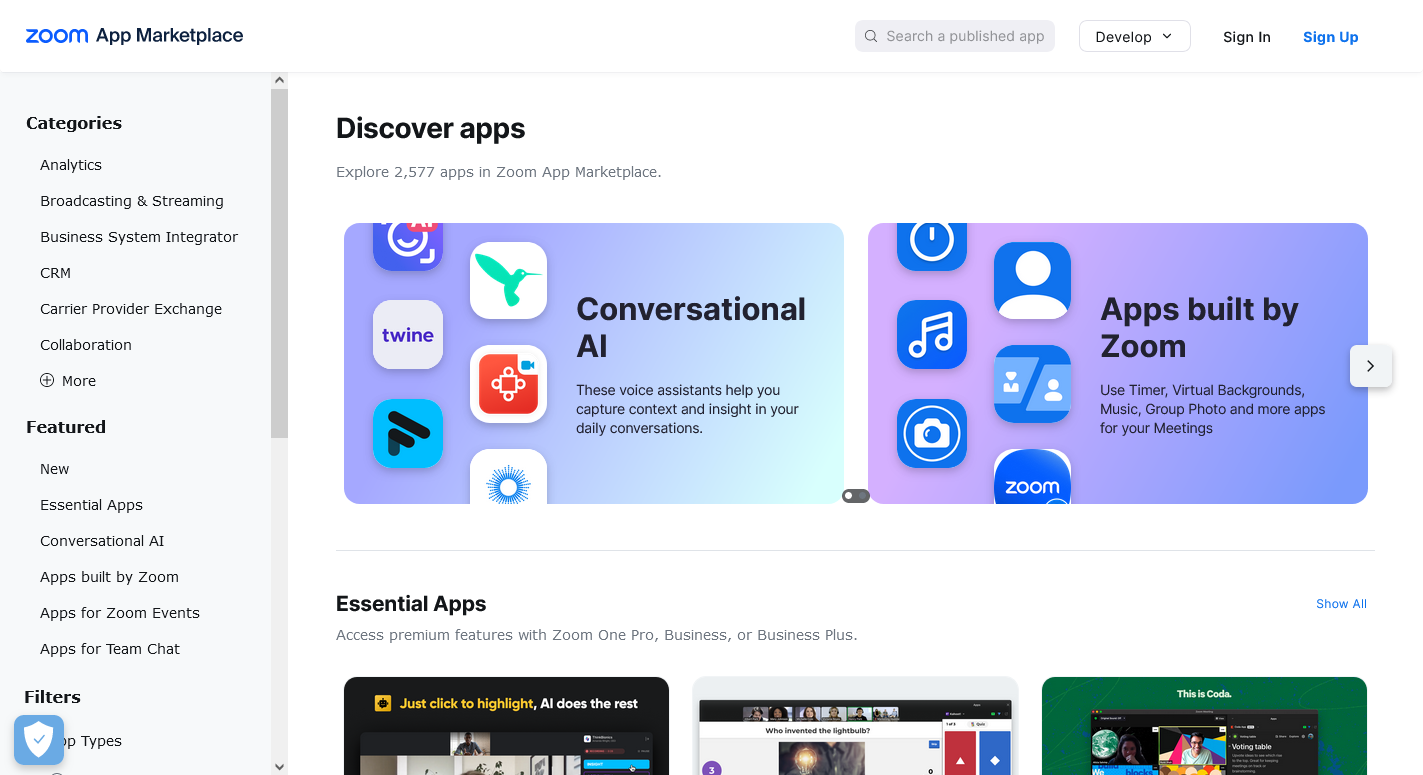
After click on the click here link, Zoom App Marketplace page will open.
To sign in for Zoom, simply click on the 'Sign In' button, which is available at the top right corner. After click, sign in page will be open.
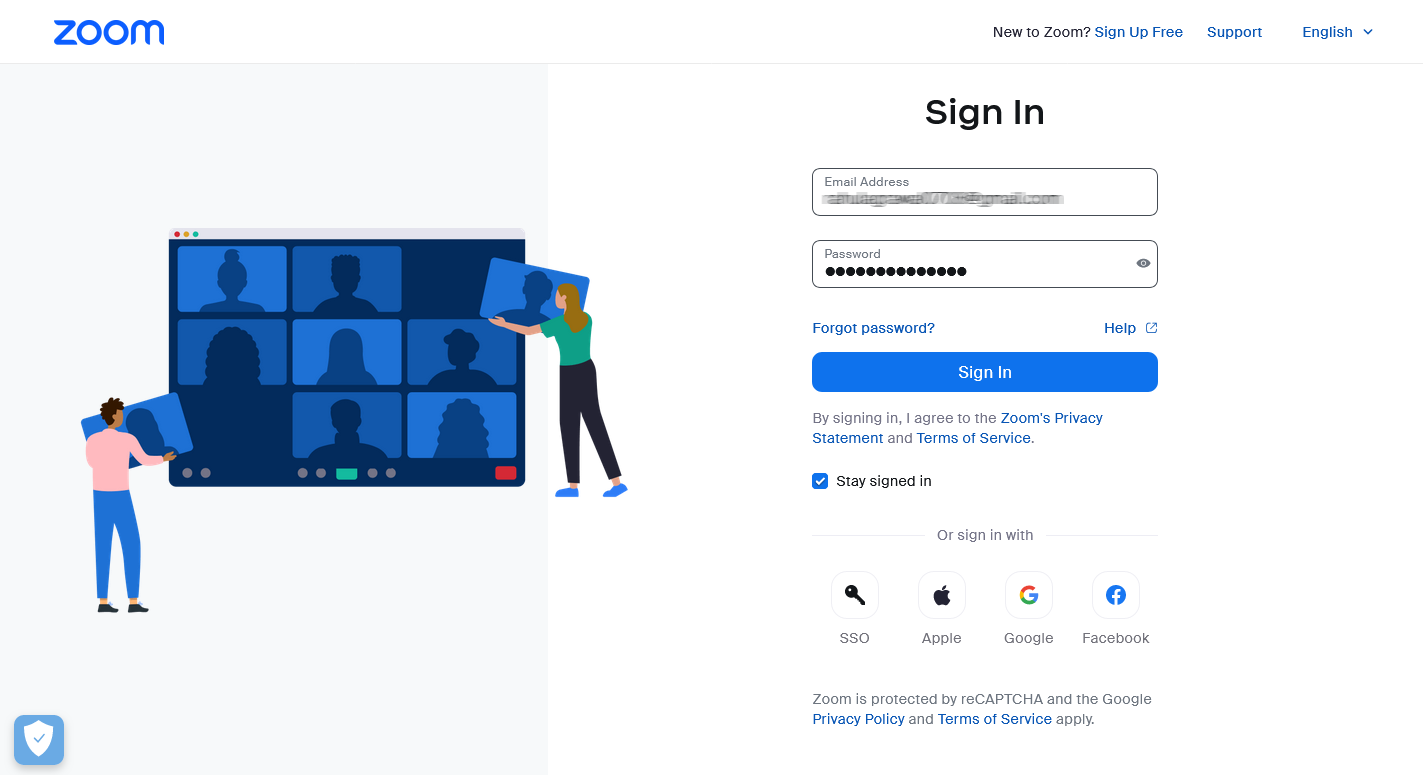
Now, fill in your details and click on the 'Sign In' button to log in to the Zoom application. After successfully login in zoom application, page will be open.
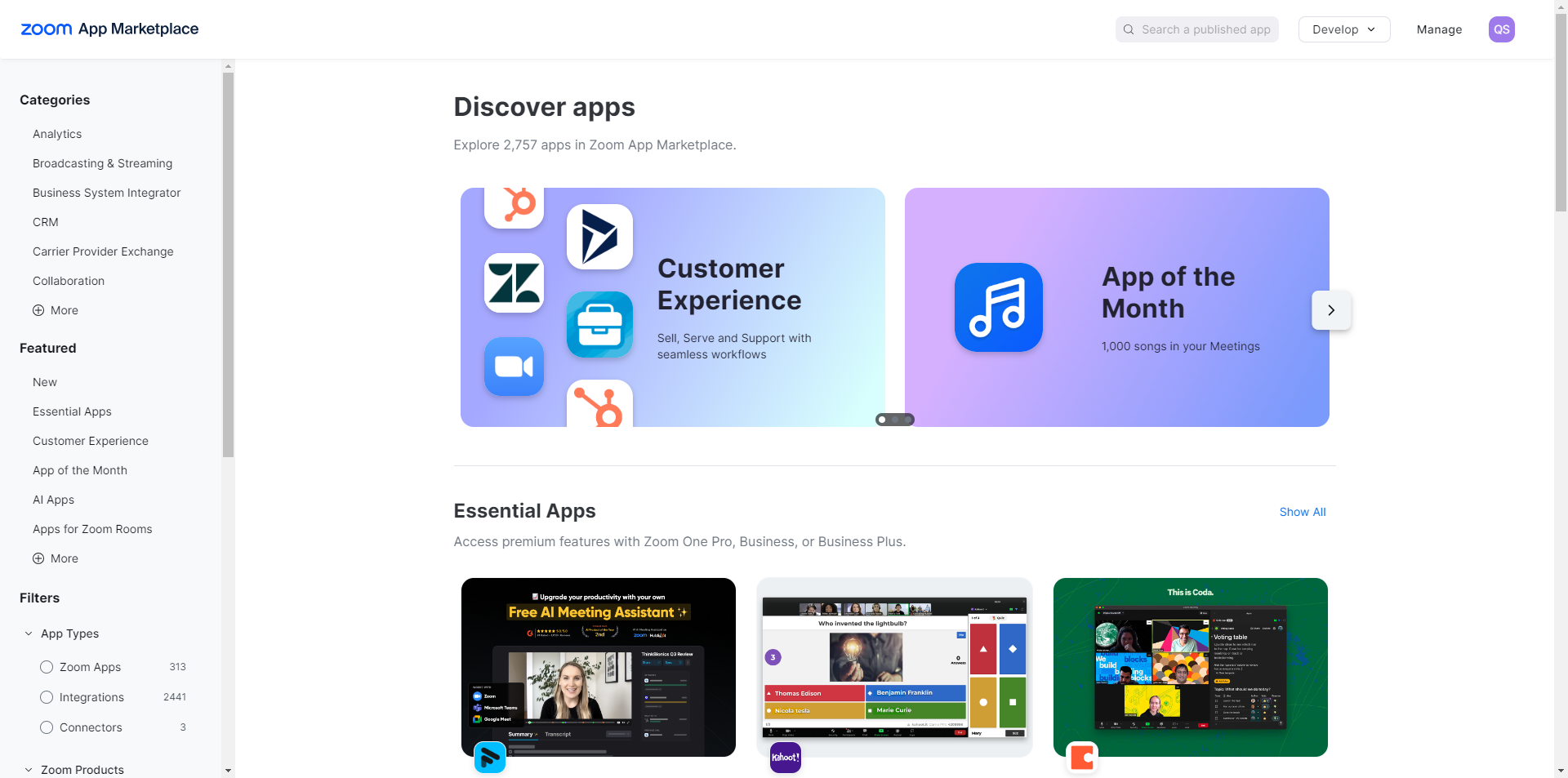
In this page you can see the multiple option, now click on Develop dropdown, showing at the top right corner, when you click on develop button drop down list will be open, now here you can see the Build App option available.
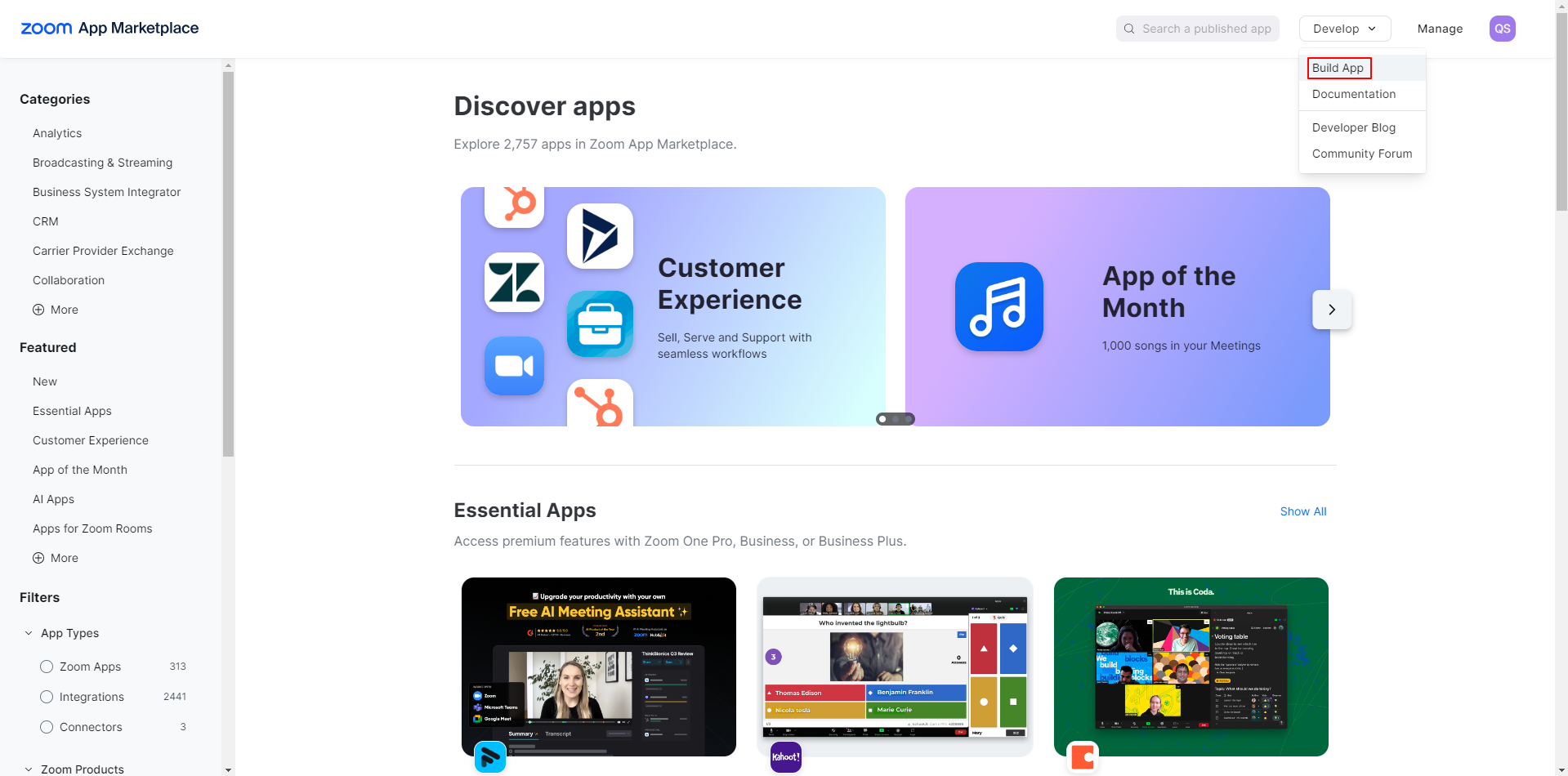
Simply click on Build App option and after click on it you have get option to choose what kind of app you want to create
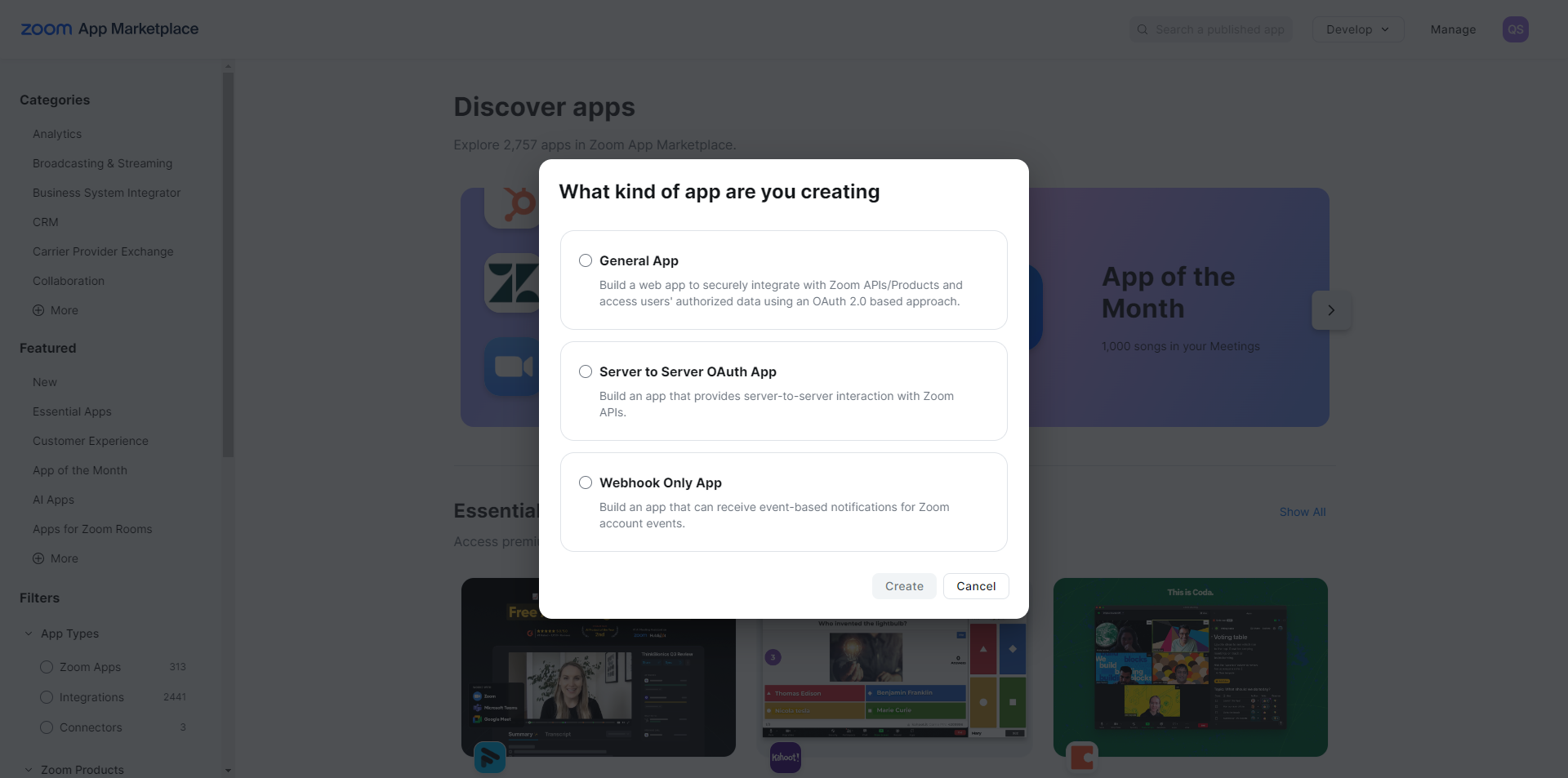
Please select General App then click on Create button
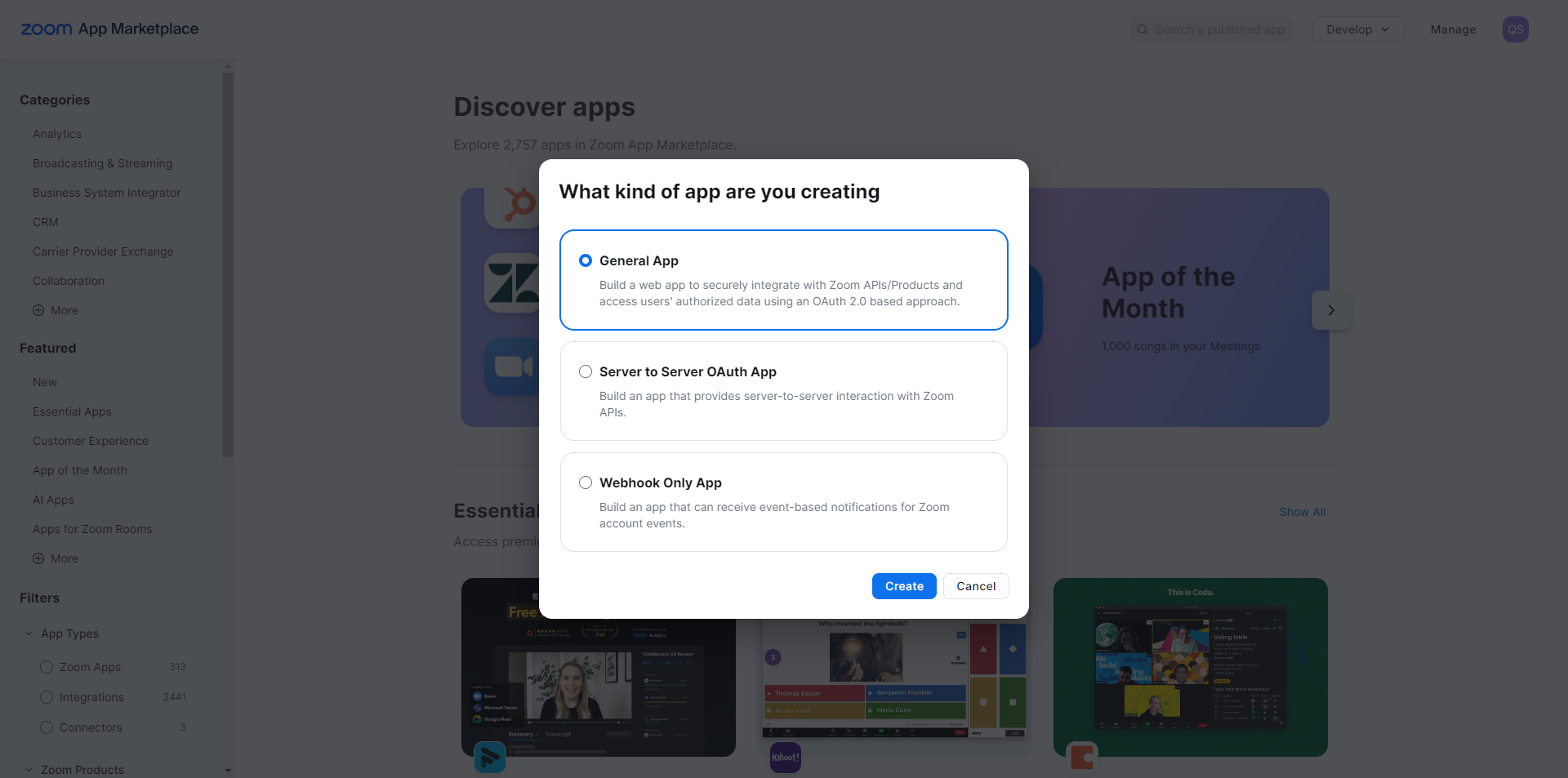
After clicked on create button, you need to enter the Basic Information
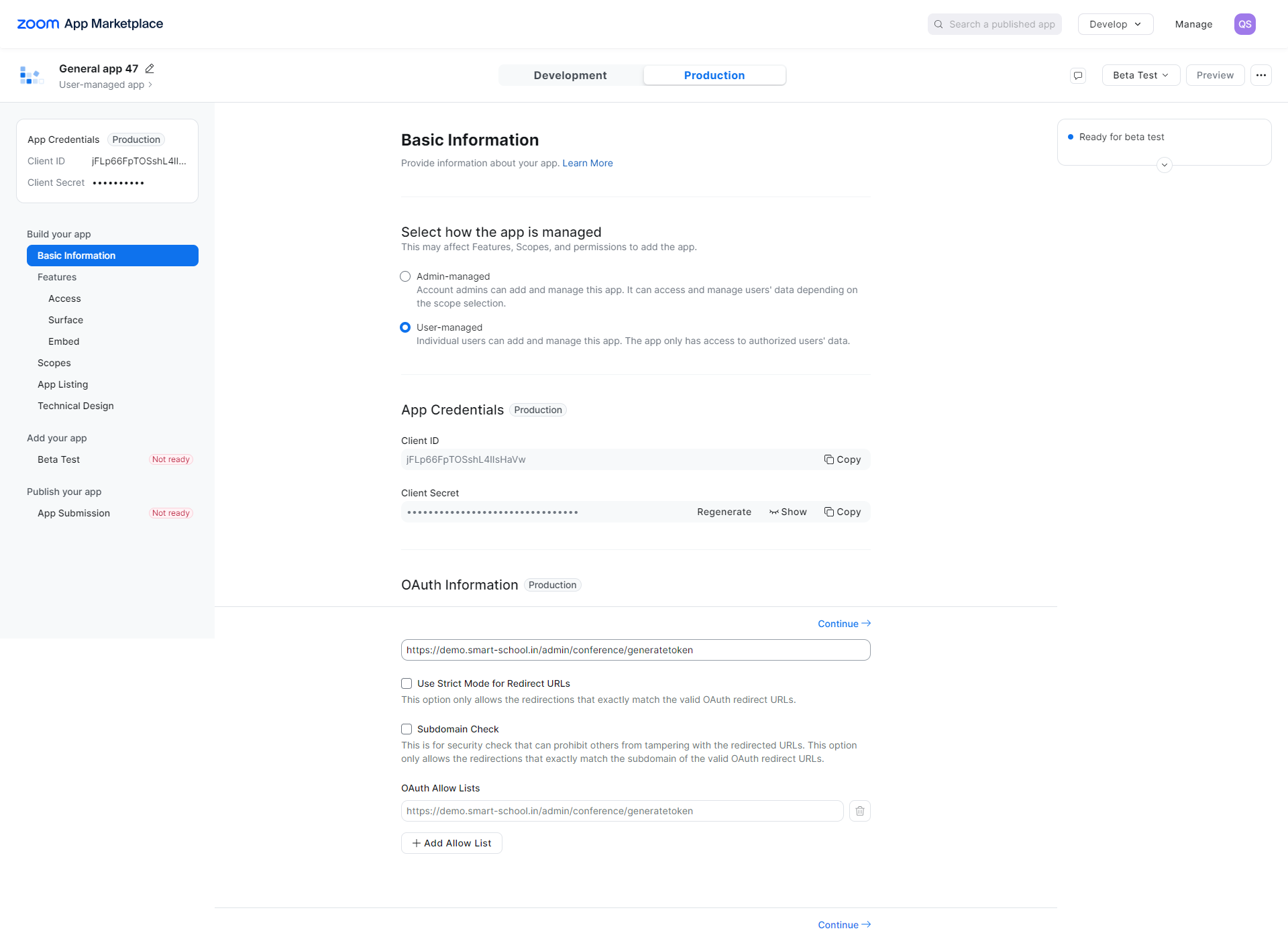
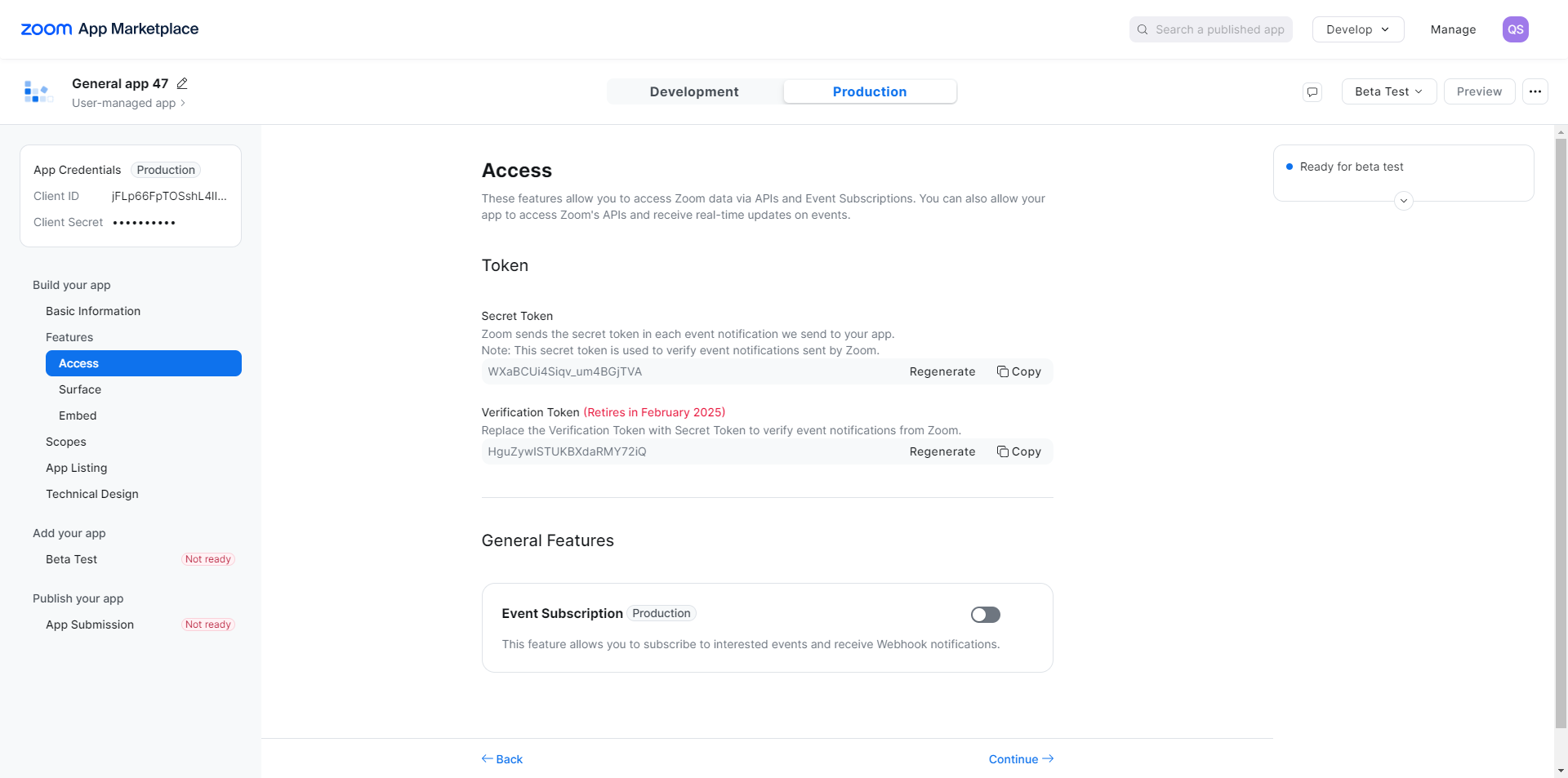
Now click on the Continue button at the bottom right so it will redirect to the Access page then click on continue button
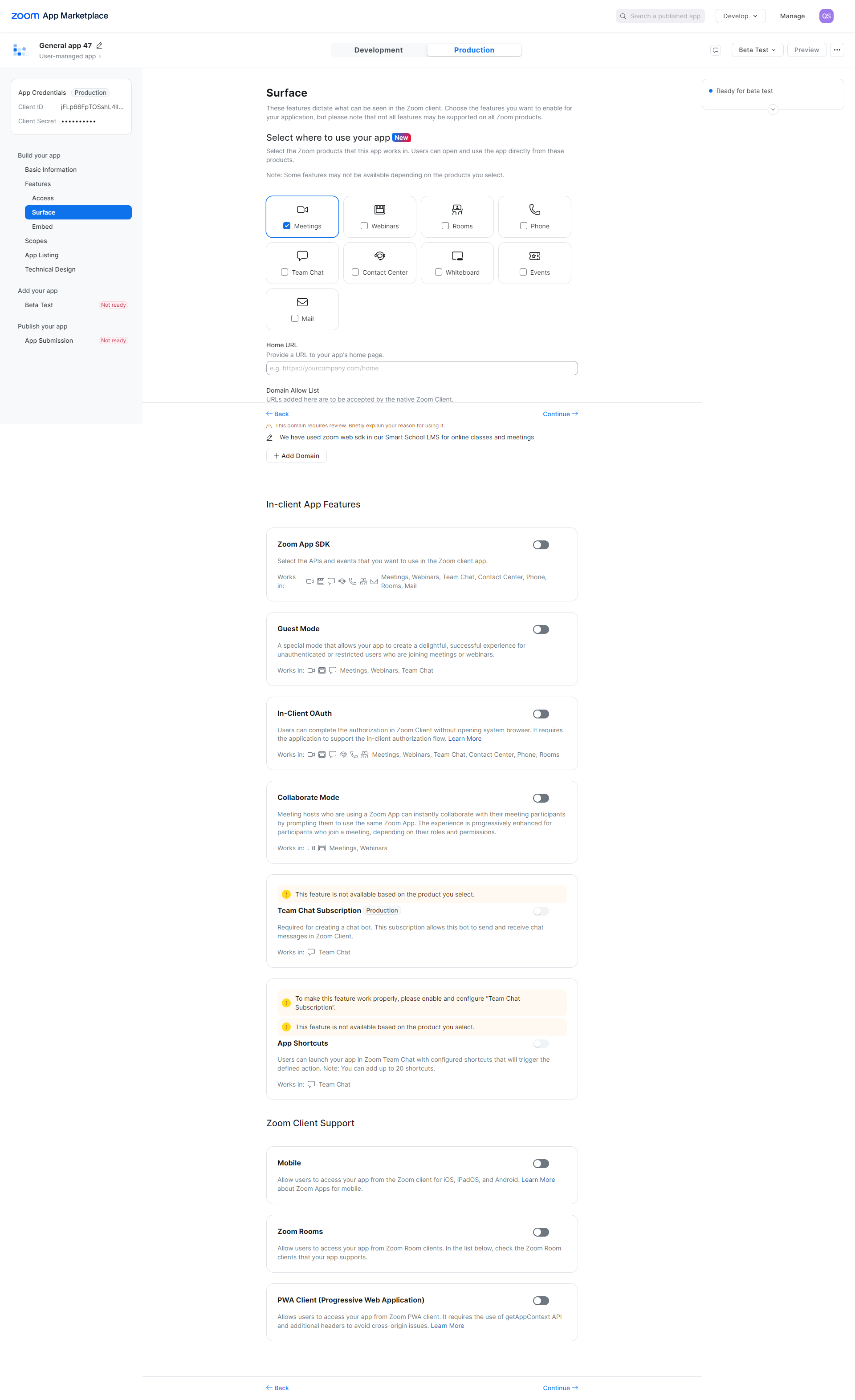
Here Surface page will be open and select the Meetings and click on Continue button
After click on continue Embed page will be open
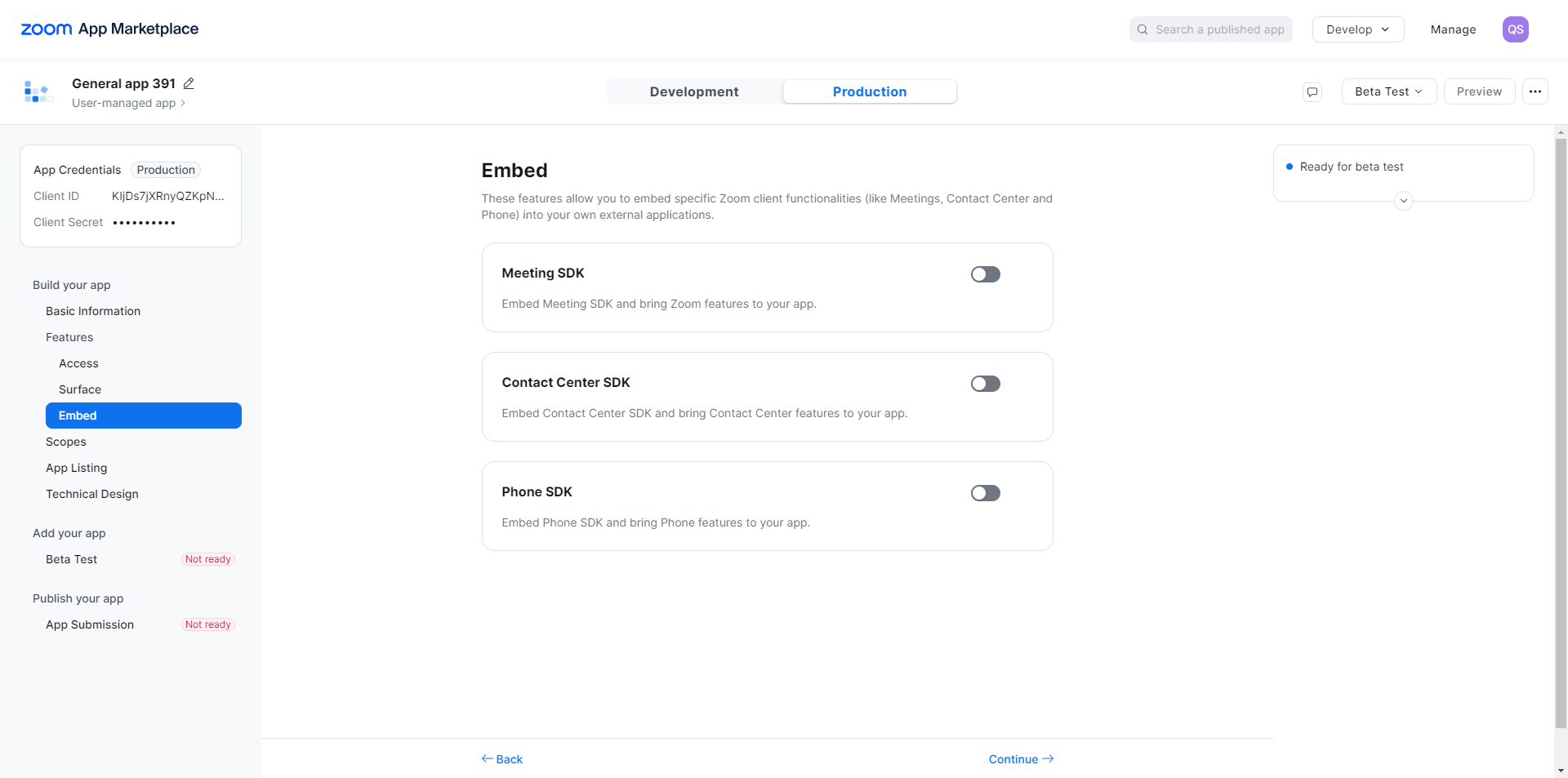
Now enabled the Meeting SDK and the page will open in below
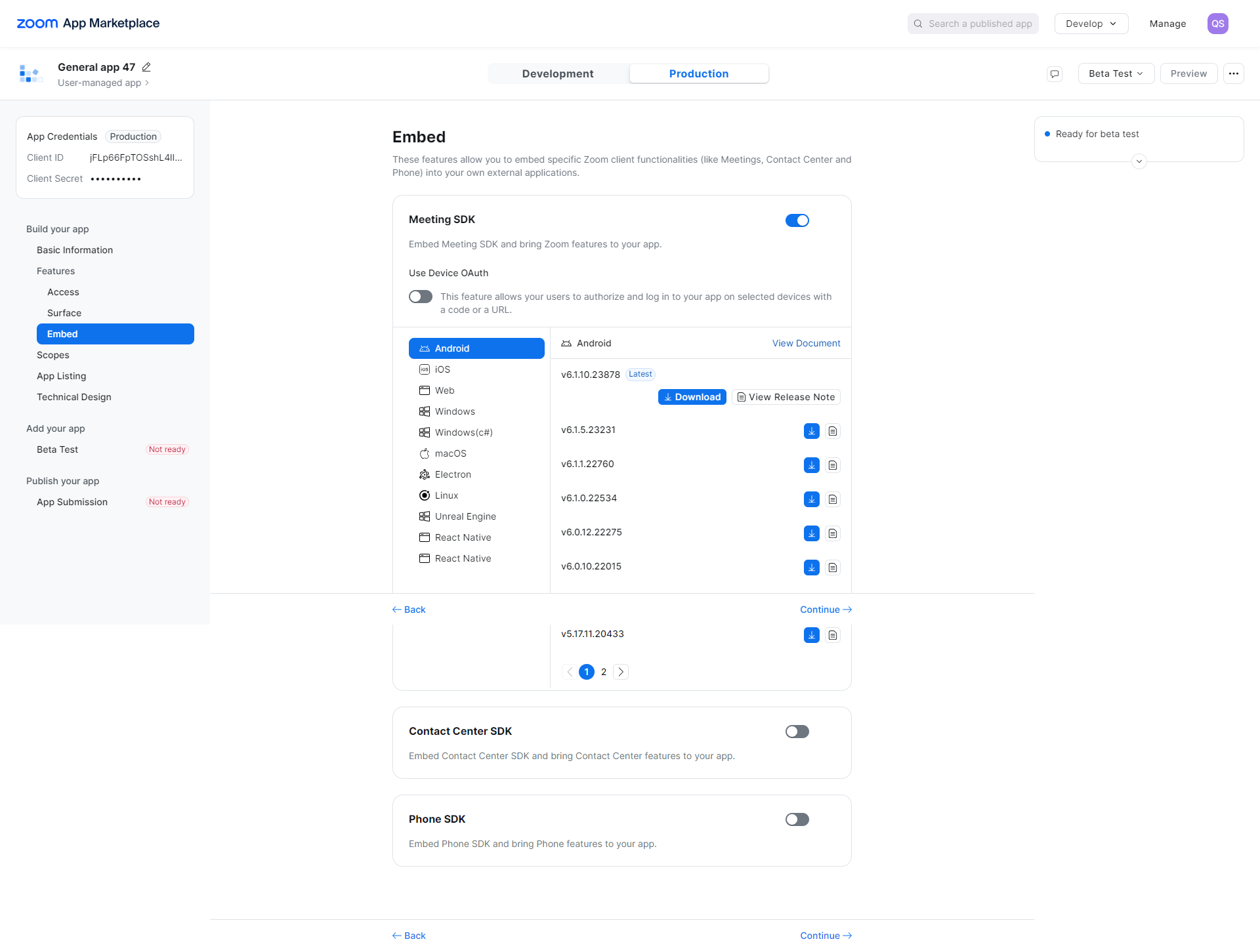
then click on Continue button, Scope page will be open, here click on Add Scope button
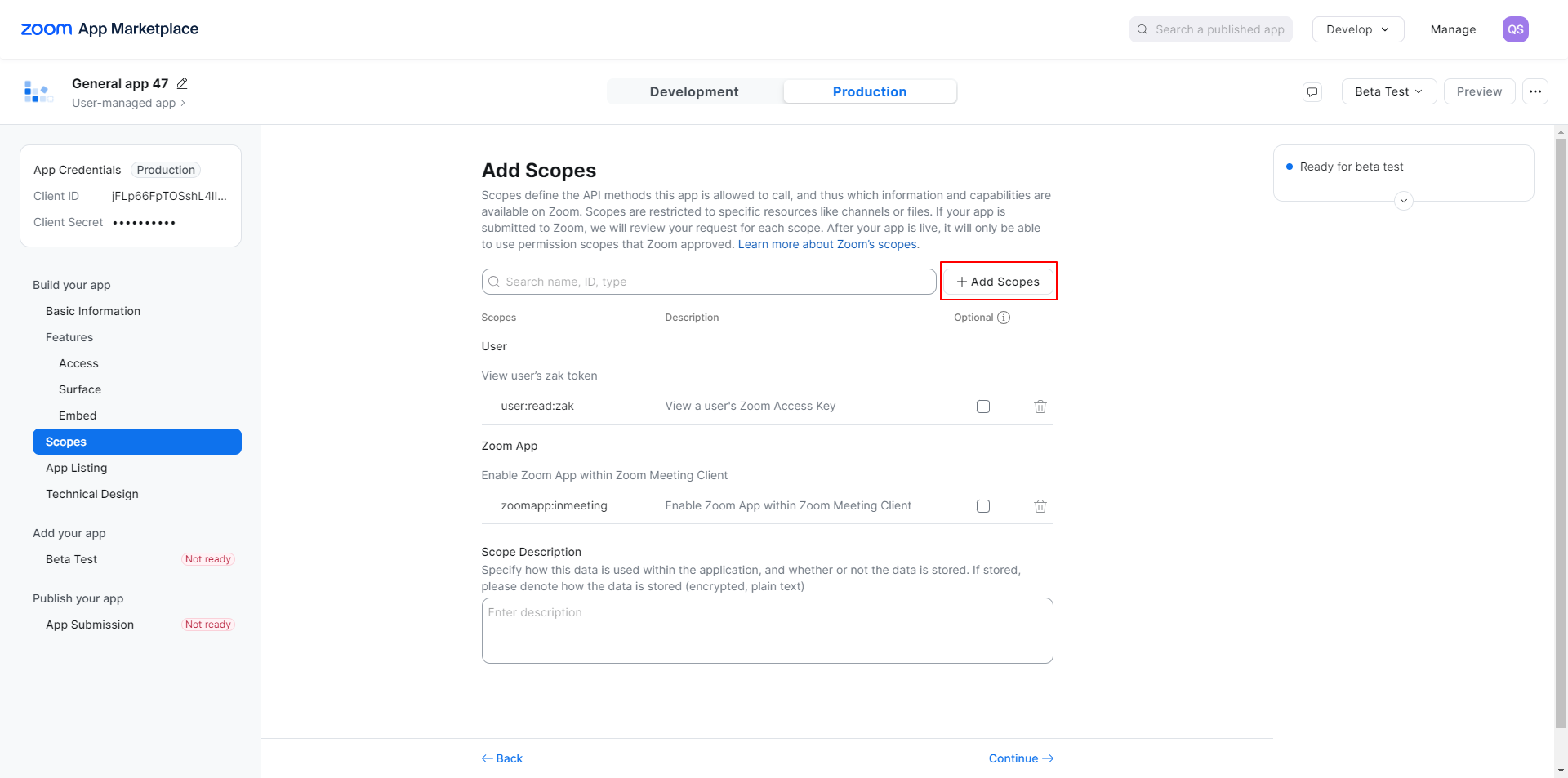
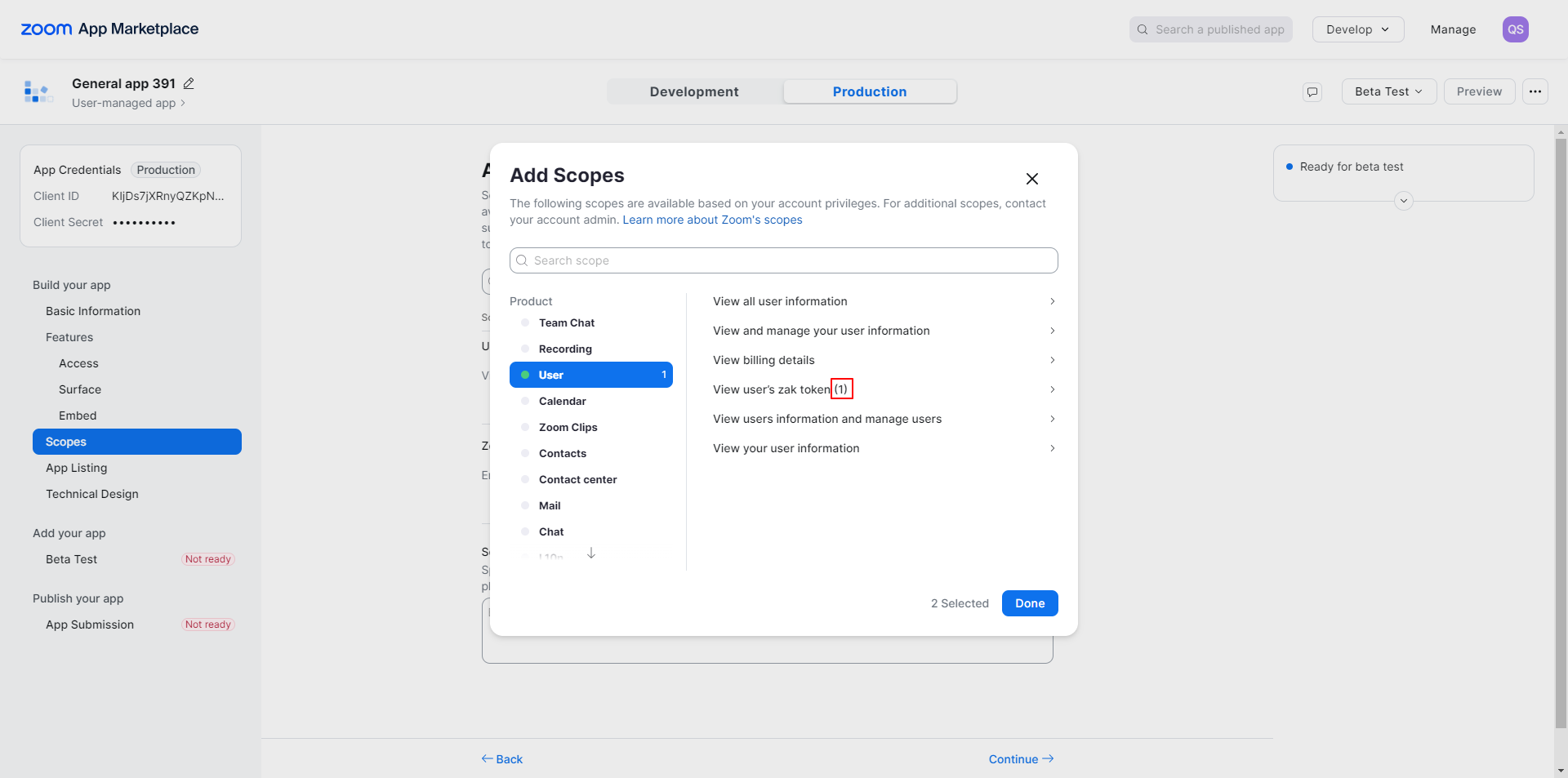
After clicking on Add Scope, an Add Scope window will open. First, ensure that User > View user's zak token is selected by default.
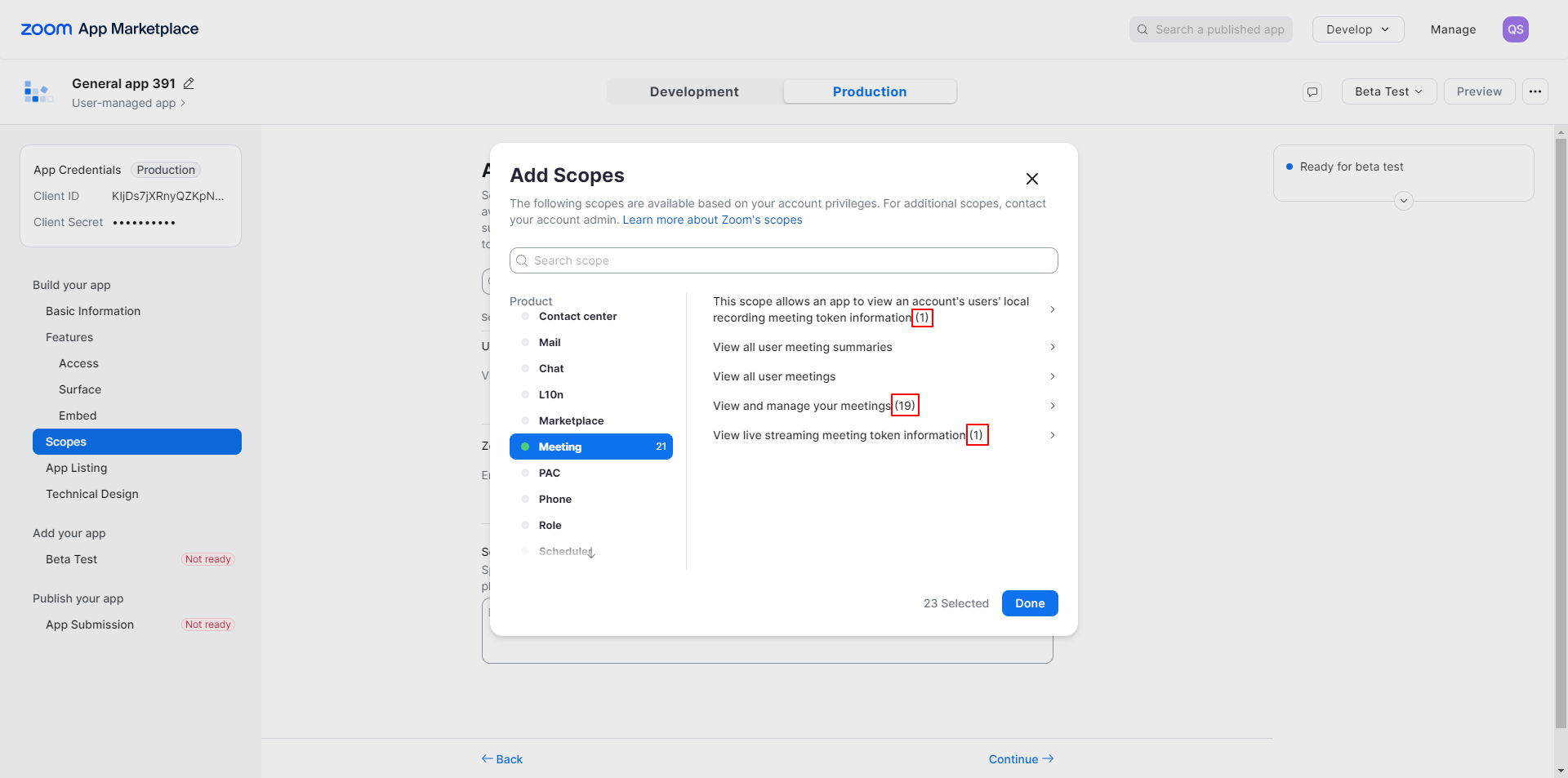
then click on Meeting, in meeting here you can see the options, kindly follow the image option and select the all check box's under of them.
then ensure zoom app should also be checked in below
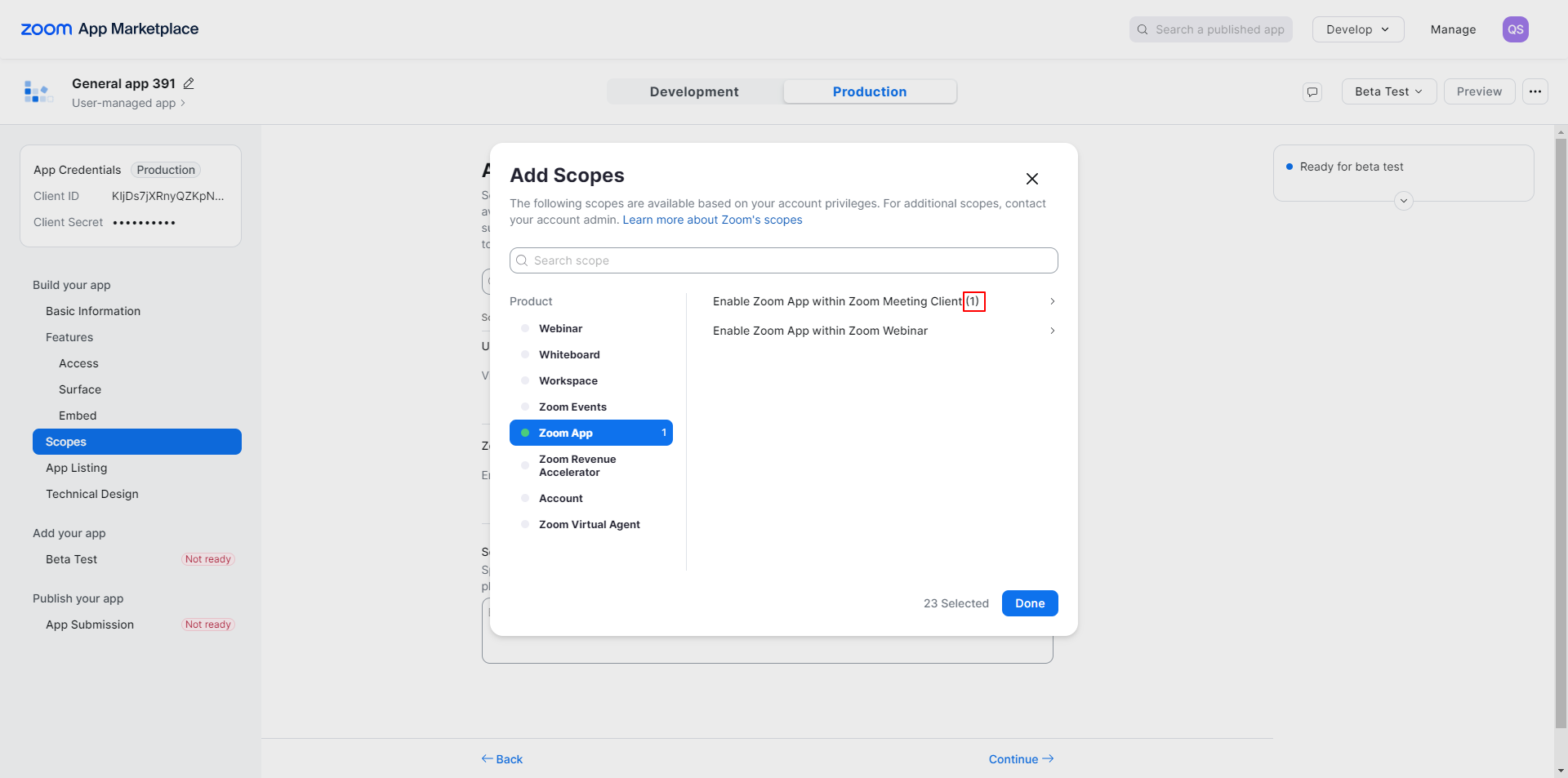
now click on done all Scope will be added successfully.
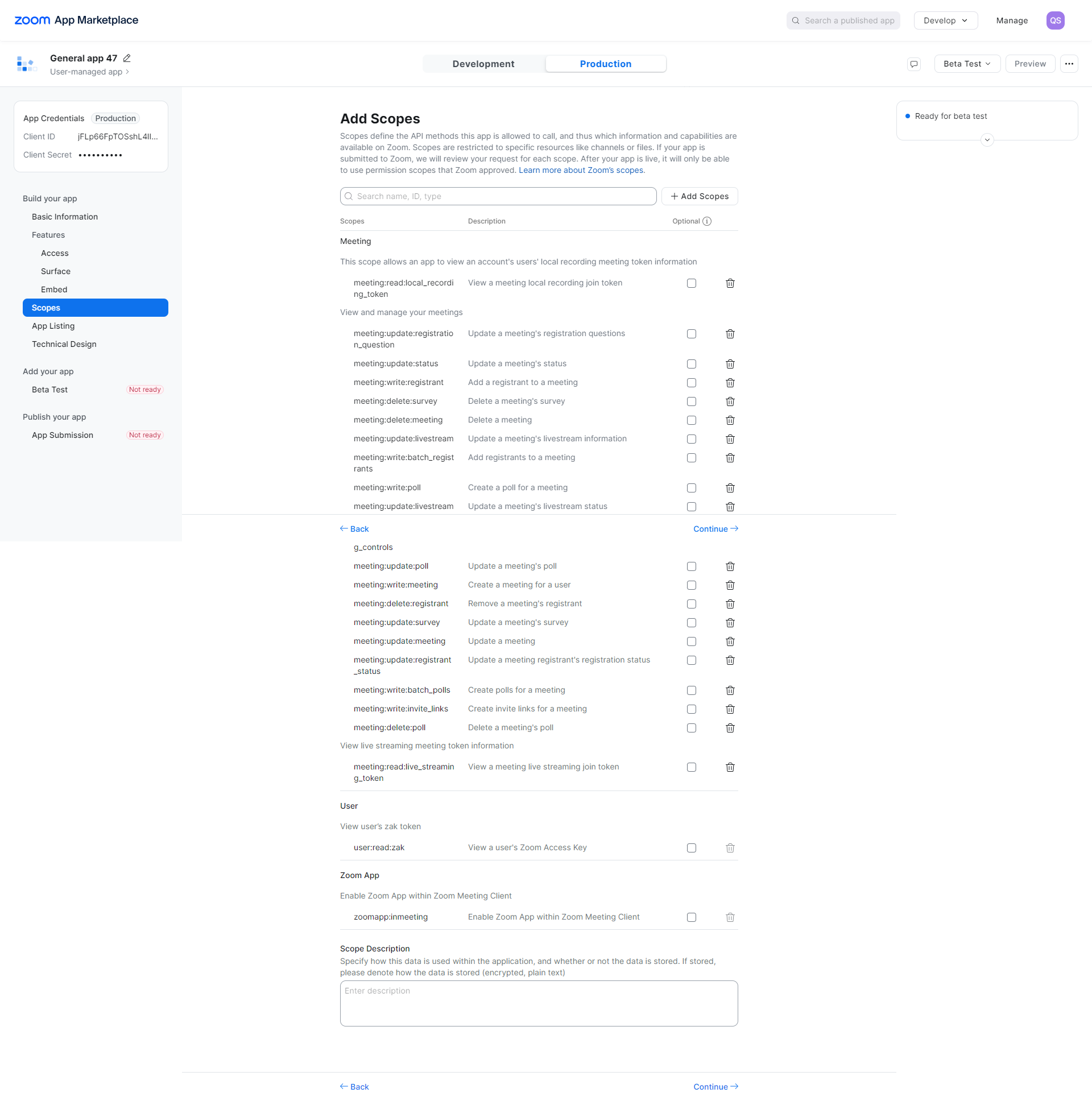
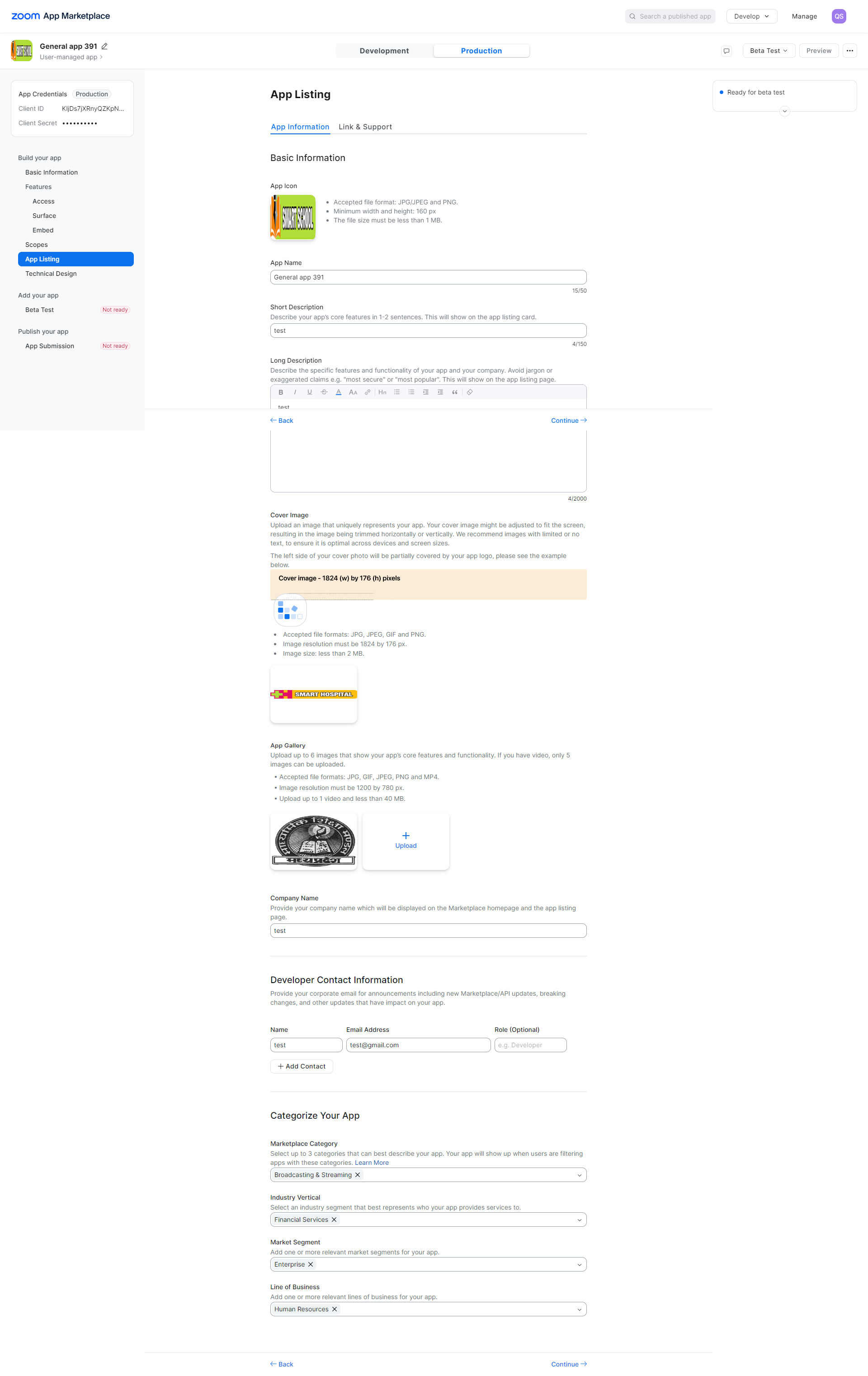
Now click on the Continue button. The App Listing page will open. On this page, enter the relevant details as desired.
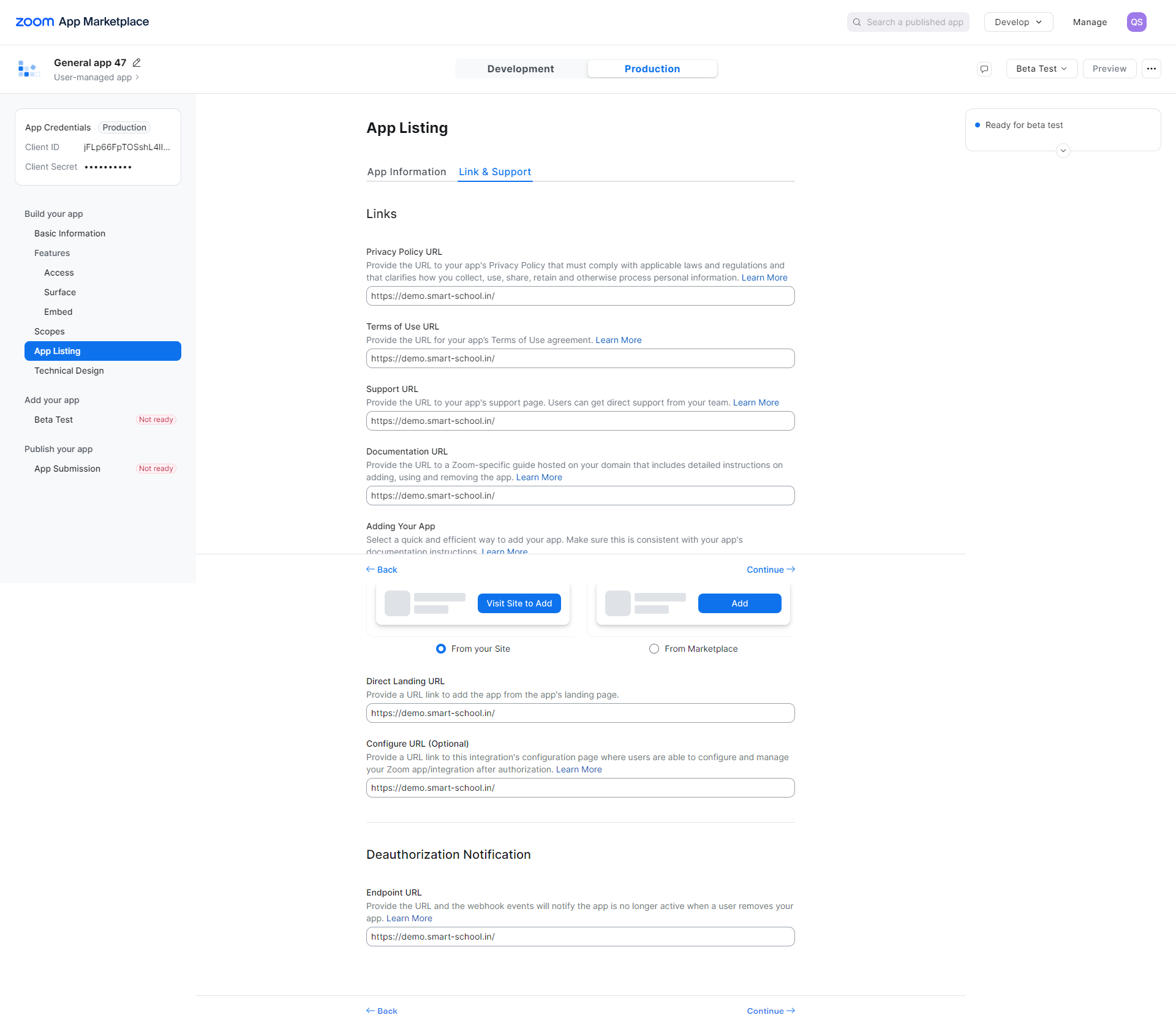
then click on continue button Link & Support page will be open, here enter your URL's depending upon your requirement
Now click on the Continue button again. The Technical Design page will open. On this page, first update the document in the architecture diagram section, then provide the relevant answers for the application development.
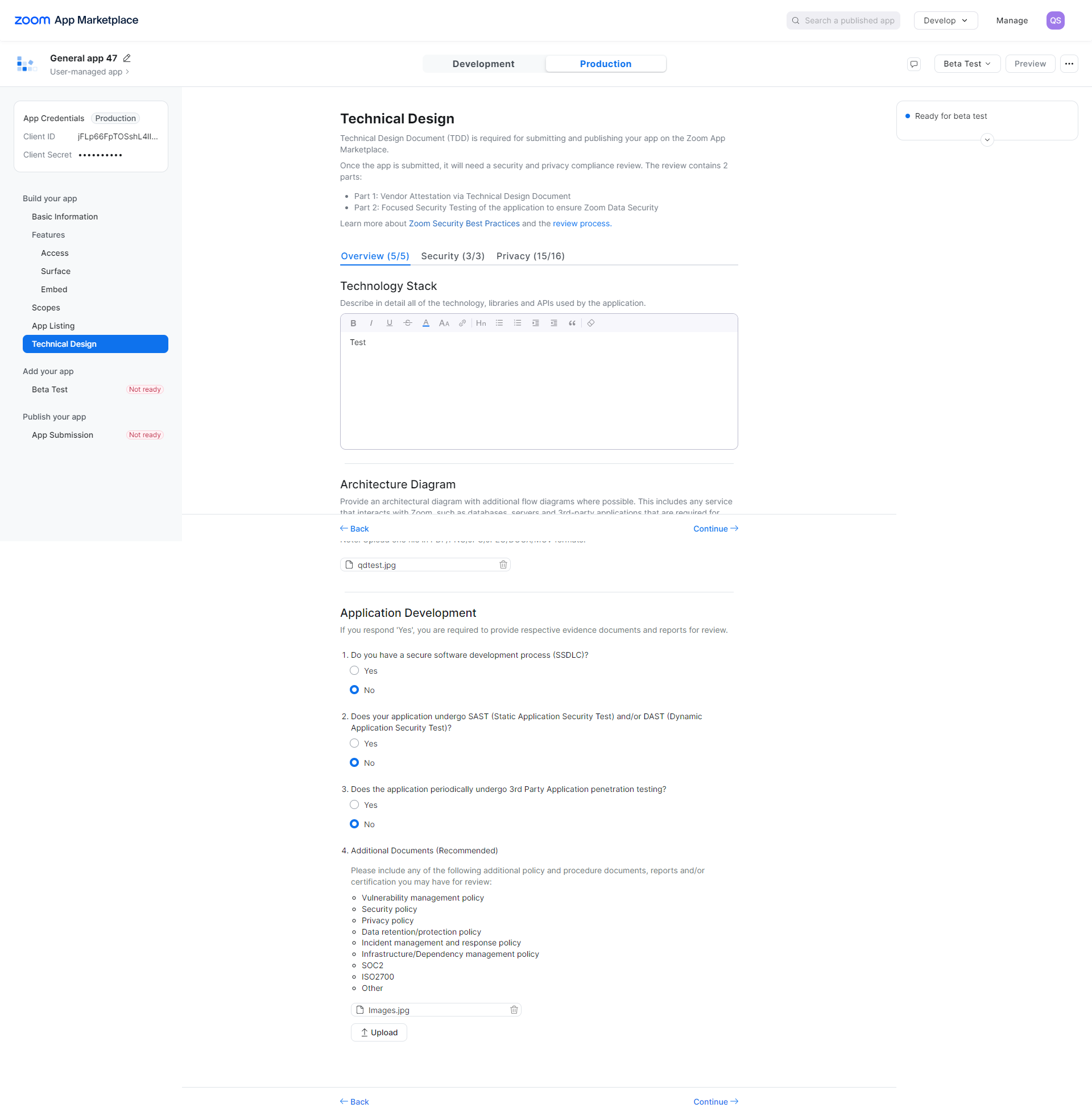
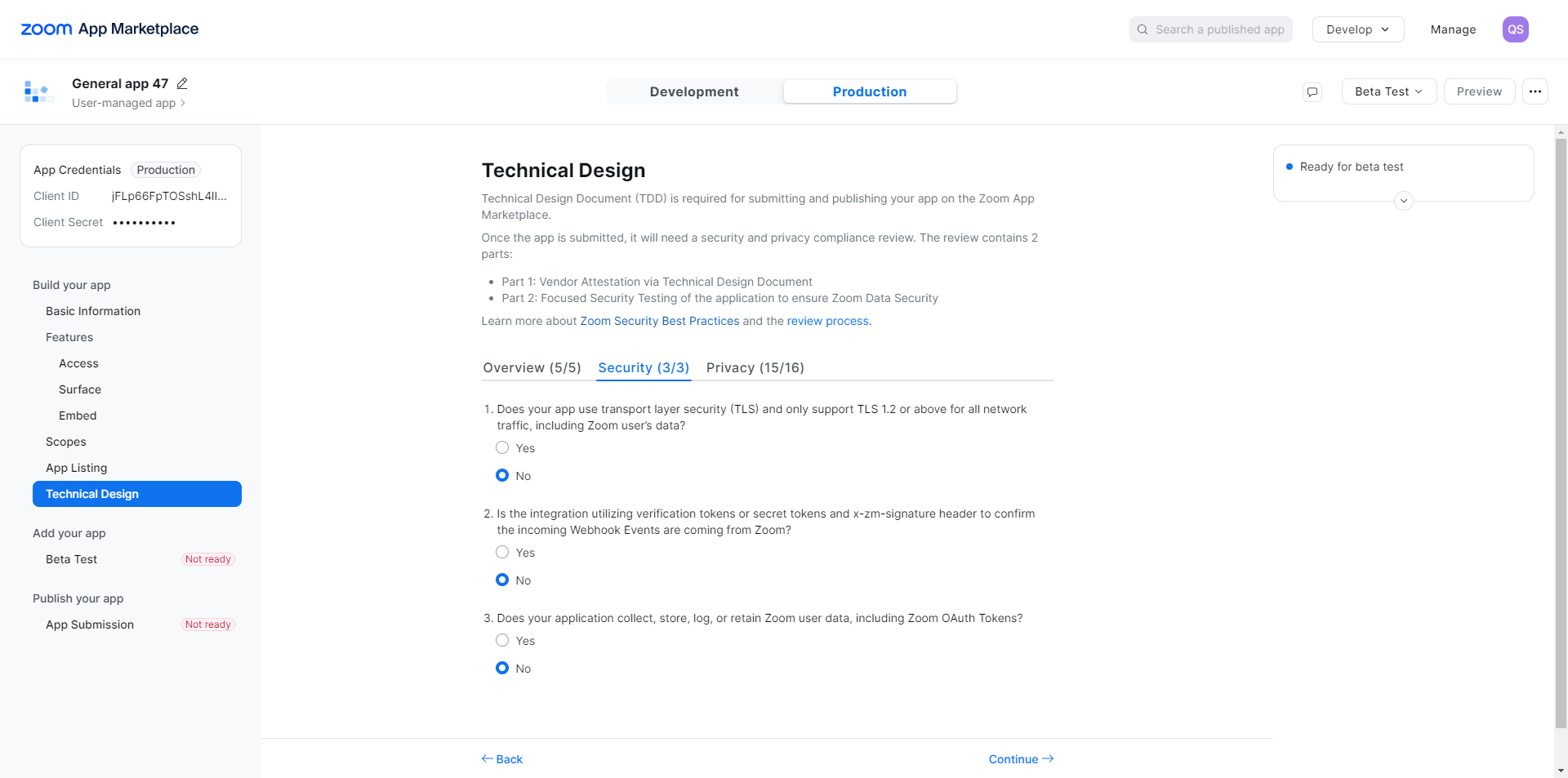
After that, click on the Continue button then give the relevant answer for the security.
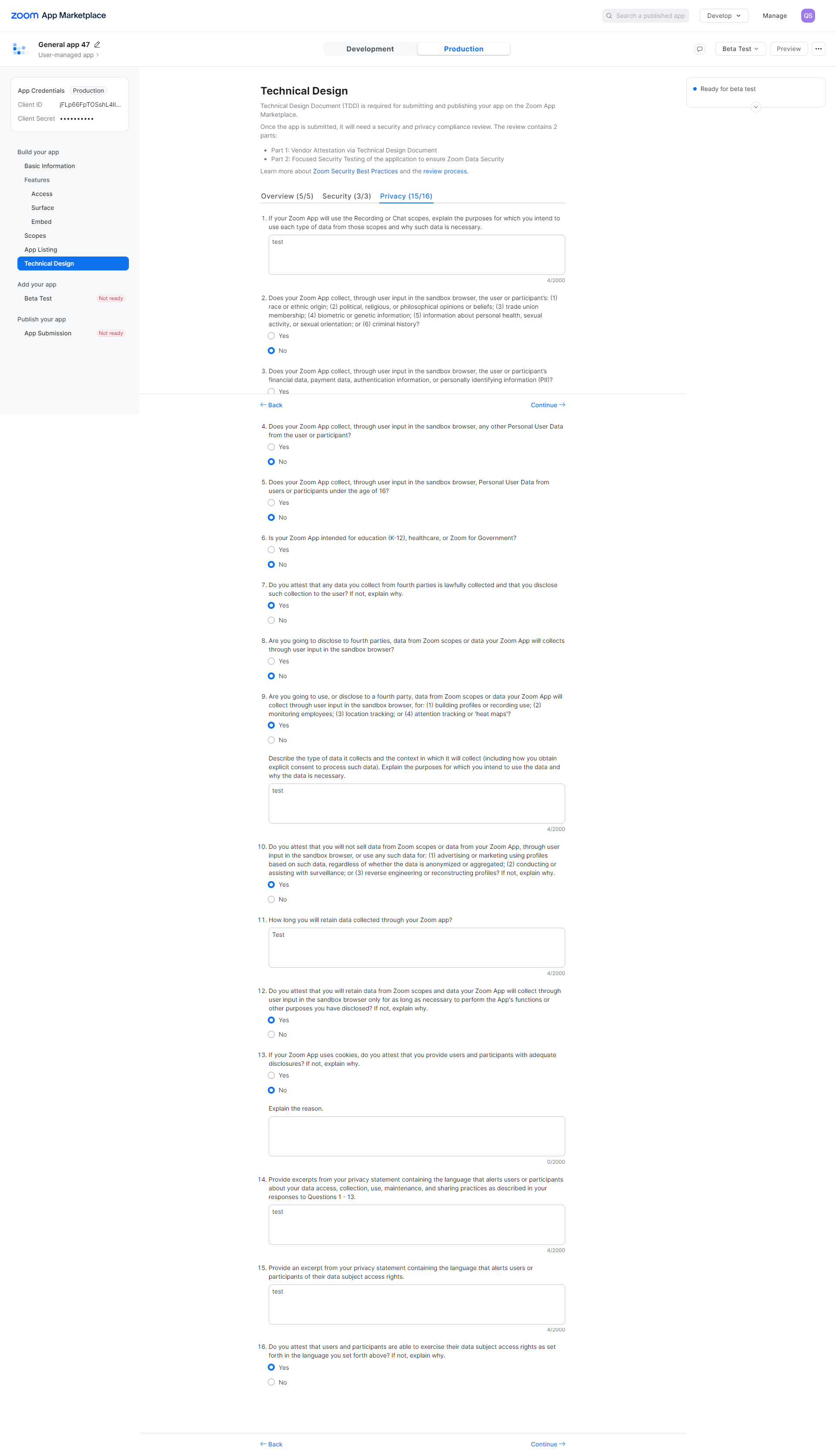
then again click on continue privacy page will be open, here give the relevant answer for the privacy.
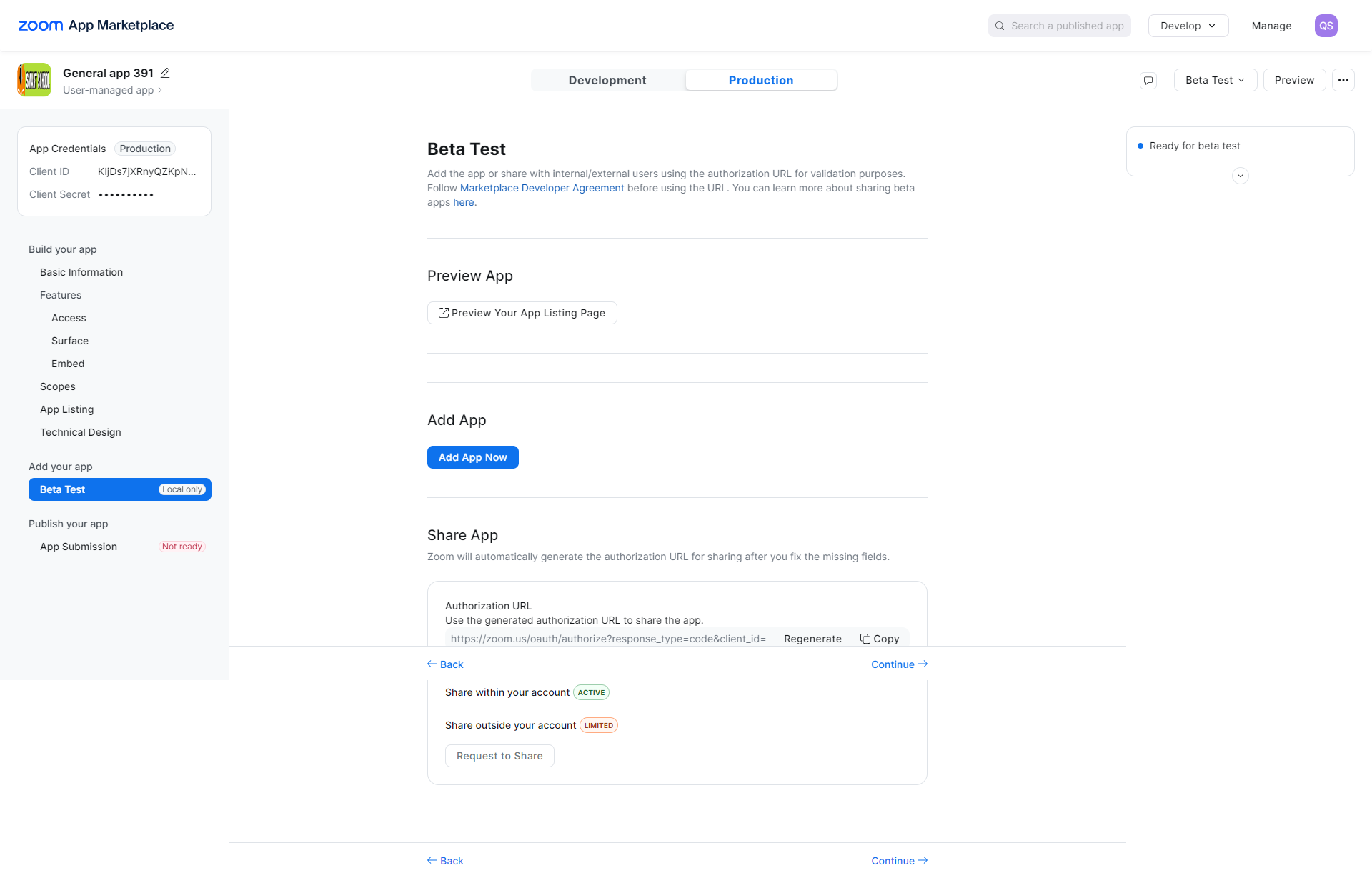
now click on Continue button Beta Test page will be open from here you can regenerate the Authorization URL if you made any changes in previous settings.
now click on continue button App Submission page will be open here follow the instructions and then click on Submit button
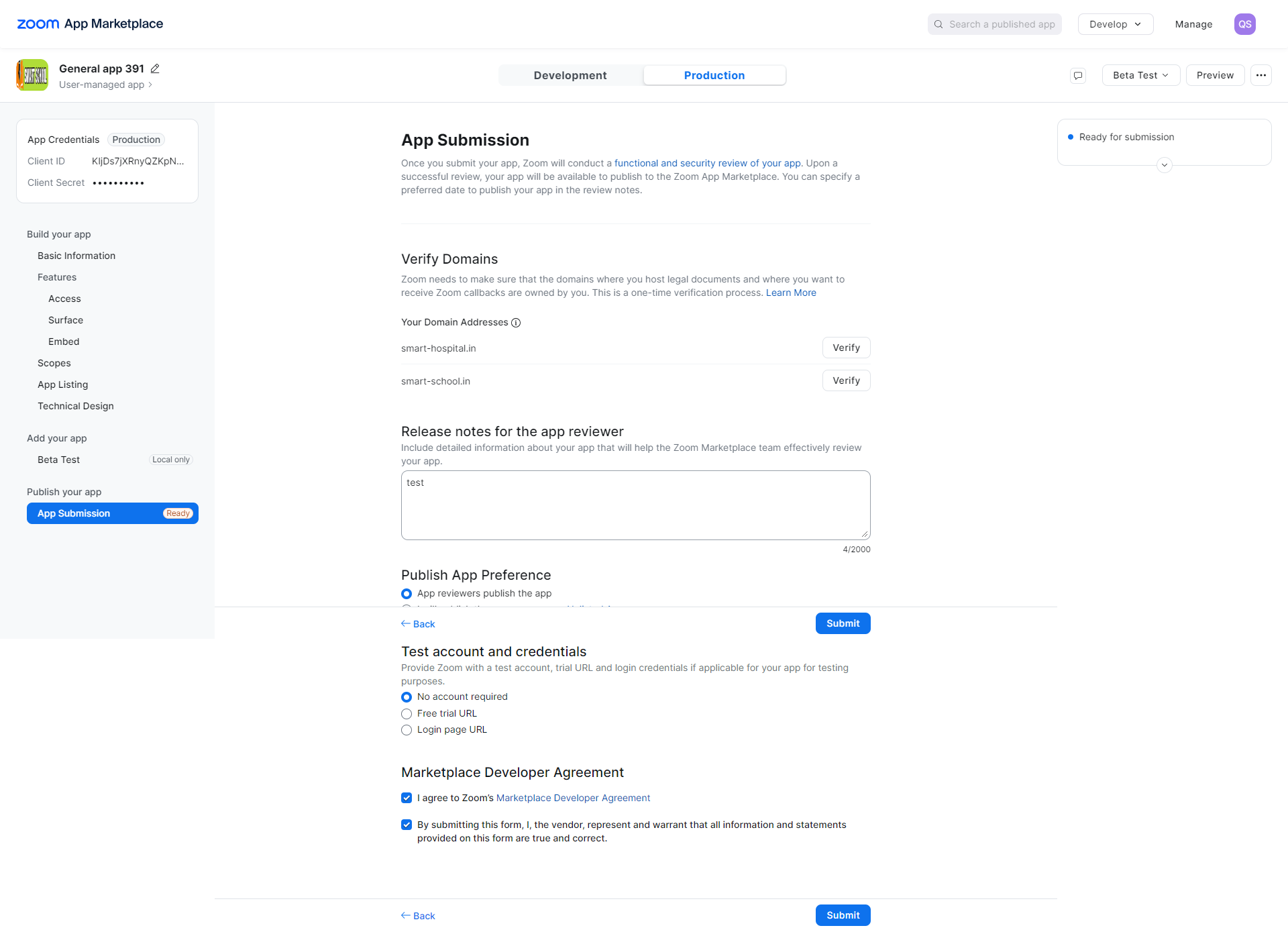
After click on submit button you have successfully generated zoom api credentials
